IPTV Audio and Video Out of Sync in 2026: Causes and Fixes
Few streaming glitches disrupt viewing faster than dialogue failing to match mouth movements. When facing IPTV audio and video out of sync, viewers often assume broadband dropped or their service failed. In reality, synchronization is governed by independent hardware and software layers across your setup.
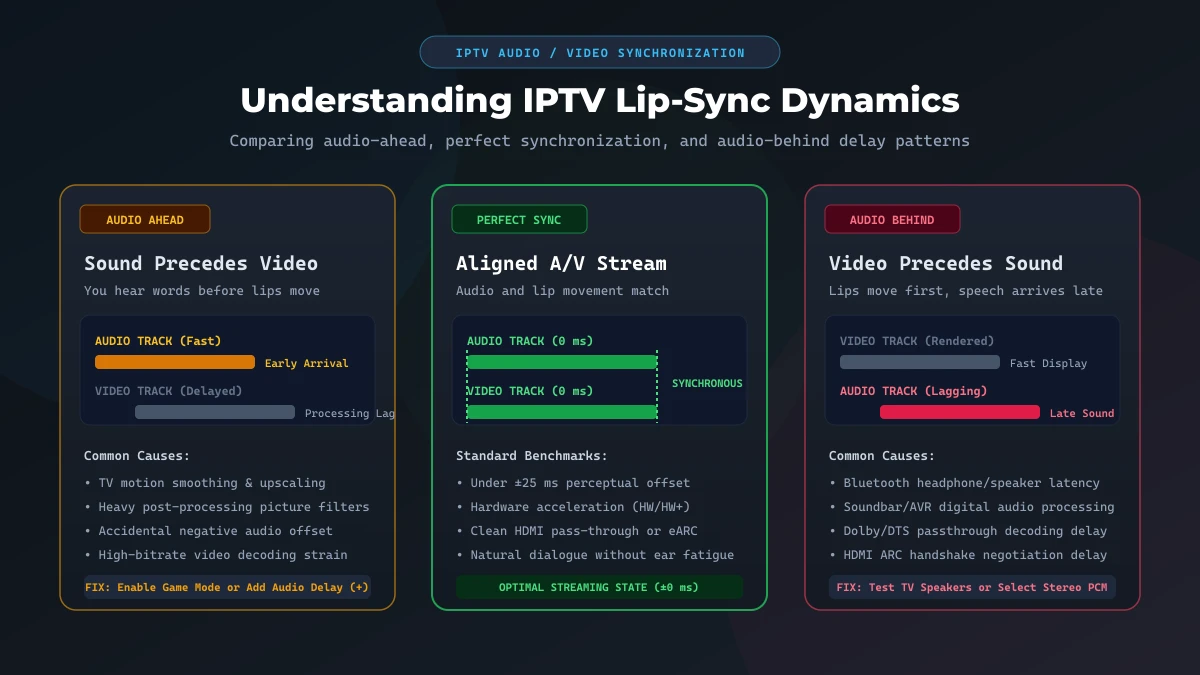
Lip-sync discrepancies take several forms:
- An IPTV audio ahead of video error where speech precedes mouth movement
- An IPTV audio behind video delay where sound trails noticeably behind action
- An IPTV audio delay that starts aligned but drifts during long viewing sessions
- Single-channel sync errors while other channels play normally
- Universal delays affecting every channel across an app or TV
The correct fix depends on where the timing error originates. Media streams travel together over your connection, but they are unpacked by your player, decoded by hardware chipsets, and processed by televisions. Pinpointing that exact handoff restores natural lip sync.
Quick Answer — Why Is IPTV Audio and Video Out of Sync?
An IPTV video out of sync condition happens when video rendering and audio decoding run at different speeds. Digital broadcasts deliver Presentation Time Stamps (PTS) instructing devices when to render frames and play audio samples. When any processing layer delays one track without holding the other, synchronization collapses.
Primary causes of an IPTV lip sync error include:
- Media player demuxers losing alignment with stream clocks
- Misconfigured millisecond audio offsets in player settings
- TV motion smoothing and upscaling buffering frames by 50 to 120 ms
- Wireless transmission latency creating an IPTV Bluetooth audio delay
- Surround DSP decoding introducing an IPTV soundbar audio delay
- HDMI ARC/eARC latency communication mismatches
- Underpowered streaming sticks struggling with video codecs
- Source feed timestamp errors at broadcaster capture facilities
- Network packet loss forcing dropped video frames
Key Distinction: A constant lip-sync offset differs from buffering. Buffering causes spinning wheels and stutter. A constant offset indicates local processing or signal-path timing.
What Does "Audio Out of Sync" Actually Mean?
Audiovisual synchronization describes the timing relationship between on-screen imagery and speaker audio. Human perception notices IPTV lip-sync problems whenever sound leads picture by over 15 ms or lags picture by over 45 ms.
Audio Is Ahead of the Video
You hear dialogue before an actor's lips move. Modern televisions route video through picture-enhancement buffers (such as motion smoothing or 4K upscaling) that hold video frames for 50 to 120 ms while passing audio directly to speakers.
Audio Is Behind the Video
You observe mouth movement first and hear words moments later. This delay originates in the downstream audio chain: Bluetooth latency, soundbar DSP decoding, surround passthrough, or an overworked software audio decoder.
Sync Gets Worse Over Time
An IPTV channel starts in perfect synchronization, but audio gradually drifts behind over thirty to sixty minutes. This drift reflects internal clock mismatches between audio sampling rates (48 kHz) and display refresh rates (59.94 Hz), or buffer management dropping occasional video frames during minor connection dips.
IPTV audio and video synchronization comparison explaining audio ahead, perfect sync, and audio behindFirst Step — Find Out Where the Problem Is
Before adjusting sliders or resetting software, isolate the failure domain:
| What You Observe | Most Likely Area |
|---|---|
| One IPTV channel only | Stream / source |
| Several IPTV channels | Player / device |
| Every IPTV channel in one app | App / decoder |
| IPTV and other apps | TV / audio system |
| Only Bluetooth audio | Bluetooth / audio device |
| Only soundbar/AV receiver | Audio chain |
| Gets worse over time | Decoder / buffer / source |
| Happens together with freezing | Network / playback |
Follow this five-step diagnostic process:
- Test Another Channel: Verify if delay affects one feed or all channels.
- Reload the Channel: Tune away for ten seconds and return to reset the buffer.
- Test Another App: Open YouTube or Netflix to see if the delay is system-wide.
- Test Another Device: Load your playlist on a phone or tablet to verify device settings.
- Test Built-In Speakers: Turn off external soundbars and Bluetooth to isolate audio processing.
Fix #1 — Restart the IPTV Channel or App
Restarting playback is the simplest first step for temporary buffer desynchronization:
- Exit the active channel.
- Reopen the channel to re-anchor timestamps.
- If necessary, fully close the IPTV app.
- Reopen the app.
- Test playback again.
Temporary buffer glitches often clear after reopening the stream. However, restarting is not a permanent fix if desynchronization is caused by hardware decoders or television processing.
Fix #2 — Adjust the Audio Delay / A/V Sync Setting
Many dedicated IPTV players and streaming devices provide an IPTV audio delay fix through an offset control labeled Audio Delay, Audio Offset, or A/V Sync.
The operating principle is simple:
- If audio is early: Add audio delay (e.g., $+50\text{ ms}$ or $+100\text{ ms}$) to hold sound until visual frames appear.
- If audio is late: Reduce or remove the delay where your device allows it.
Open playback or audio settings and look for Audio Delay, Audio Offset, or A/V Sync. Popular players such as IPTV Smarters, TiviMate, and VLC media player offer millisecond sliders. Menu names vary by app and version. Always make small adjustments (25 to 50 ms at a time) rather than sweeping the slider dramatically.
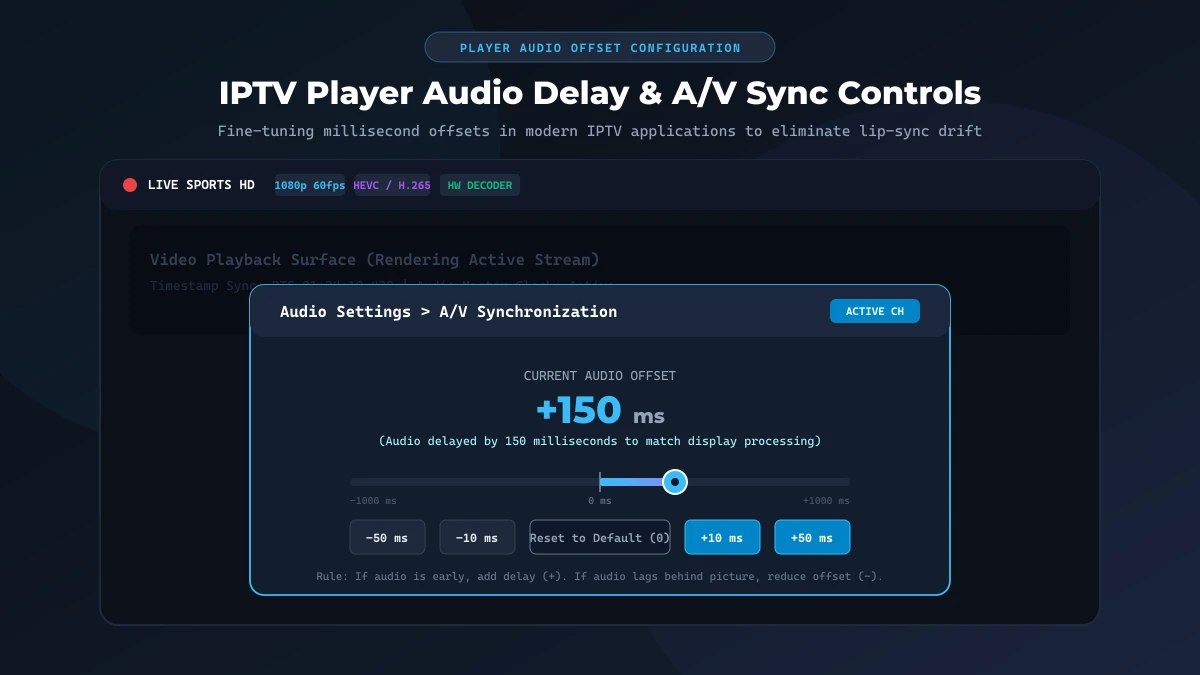 IPTV player audio delay adjustment showing millisecond offset slider
Fix #3 — Switch Hardware and Software Decoding
Video decoding converts compressed broadcast feeds into raw imagery and sound:
- Hardware Decoding (HW / HW+): Uses dedicated silicon video processors on your device. It provides maximum efficiency and smooth 4K 60 FPS playback.
- Software Decoding (SW): Uses general CPU cores to decompress streams. It offers broad codec compatibility, but on budget devices, CPU strain can cause dropped video frames.
If your player provides a decoder setting:
- Test Hardware decoding.
- Restart the stream.
- Test Software decoding.
- Restart the stream again.
- Compare the result.
Fix #4 — Check Your TV's Picture Processing
Modern televisions process video through motion smoothing, frame interpolation, upscaling, and noise reduction, buffering frames in memory and causing audio to arrive ahead of video.
To test your television processing:
- Switch your television picture mode temporarily to Game Mode or PC Mode, which strips away intermediate frame buffers.
- Disable Motion Smoothing (known as TruMotion, Auto Motion Plus, or Motionflow) in expert picture settings.
- Reduce unnecessary picture enhancement filters.
If synchronization snaps into place, keep motion smoothing disabled for IPTV or configure a matching audio offset in your player.
Fix #5 — Test Without Bluetooth Audio
Wireless Bluetooth connections (headphones, portable speakers, or Bluetooth soundbars) introduce latency due to wireless transmission buffering. An IPTV Bluetooth audio delay is one of the most common reasons sound lags behind picture.
To test your setup:
- Temporarily disconnect your Bluetooth headphones or speaker.
- Switch audio output to built-in TV speakers or a wired headphone connection.
- Observe live playback.
If lip sync immediately improves, the wireless audio path is contributing to the delay. Consider using wired audio, RF wireless TV headphones, or adjusting your player's A/V sync offset.
Fix #6 — Check Your Soundbar or AV Receiver
Connecting a soundbar or AV receiver introduces another digital processing stage into your audio chain. External sound equipment utilizes digital signal processors (DSP) to decode multi-channel surround sound, which can delay sound output.
Apply this diagnostic approach:
- Test built-in TV speakers.
- Test the soundbar.
- Compare synchronization between both outputs.
- Check the soundbar's dedicated lip-sync or audio-delay setting via remote control or companion app.
- Temporarily test stereo or PCM output format if supported.
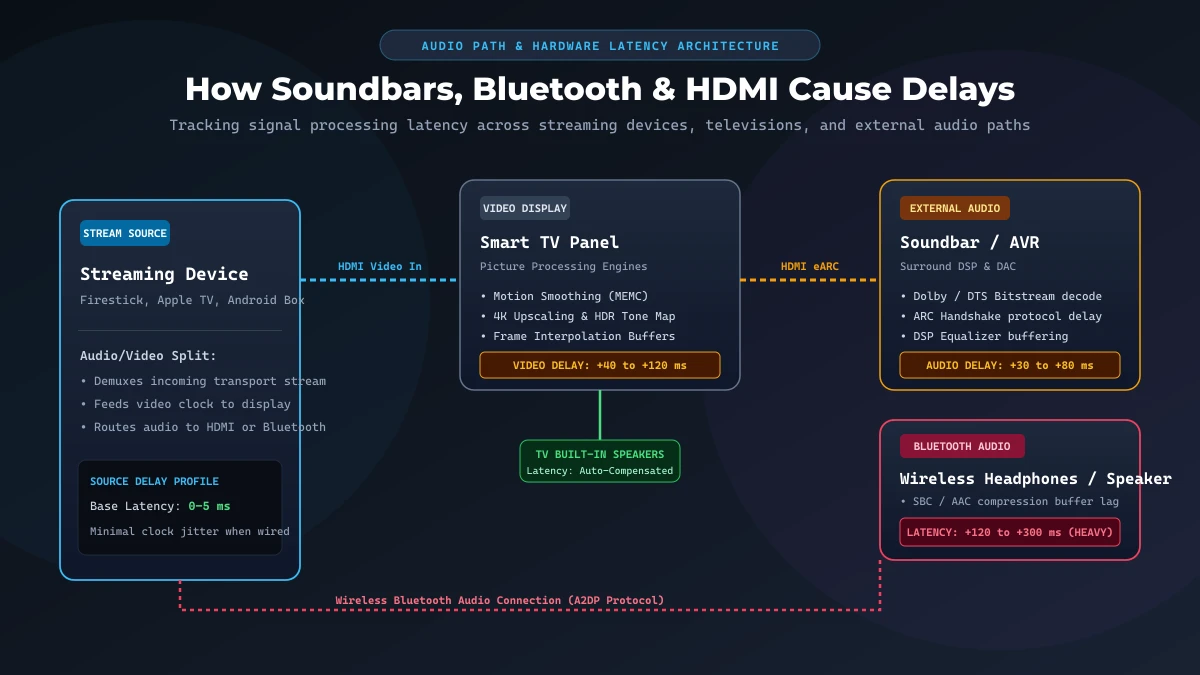 IPTV soundbar Bluetooth and HDMI audio setup latency bottlenecks
Fix #7 — Check HDMI and ARC/eARC
Connecting streaming devices and soundbars through HDMI Audio Return Channel (ARC) or enhanced Audio Return Channel (eARC) provides convenient control. However, an IPTV HDMI audio delay can occur when connected devices experience communication handshake errors.
Follow these safe troubleshooting steps:
- Power off all devices at the wall outlet.
- Disconnect and firmly reconnect the HDMI cables.
- Restart the television and soundbar.
- Test playback again.
- Try another HDMI port if appropriate.
- Test a direct HDMI connection if your hardware supports it.
Fix #8 — Try Stereo / PCM as a Diagnostic
Digital audio formats range from uncompressed 2-channel Stereo PCM to compressed surround formats like Dolby Digital. When streaming devices output bitstream surround audio, downstream hardware must decode the stream, introducing potential latency.
Temporarily selecting stereo or PCM helps identify whether surround decoding is causing the delay:
- Open your streaming device or TV sound settings.
- Change digital audio output from Auto or Bitstream to PCM / Stereo.
- Test IPTV playback.
If synchronization normalizes in stereo/PCM, the issue resides in your surround decoding chain.
Fix #9 — Check Whether Your Internet Connection Is Actually the Problem
A fixed lip-sync offset differs from classic buffering. Low broadband speed produces buffering wheels and pauses rather than a consistent millisecond delay.
However, network instability can create apparent synchronization issues. Severe packet loss and jitter can force media players to drop video frames while audio continues playing.
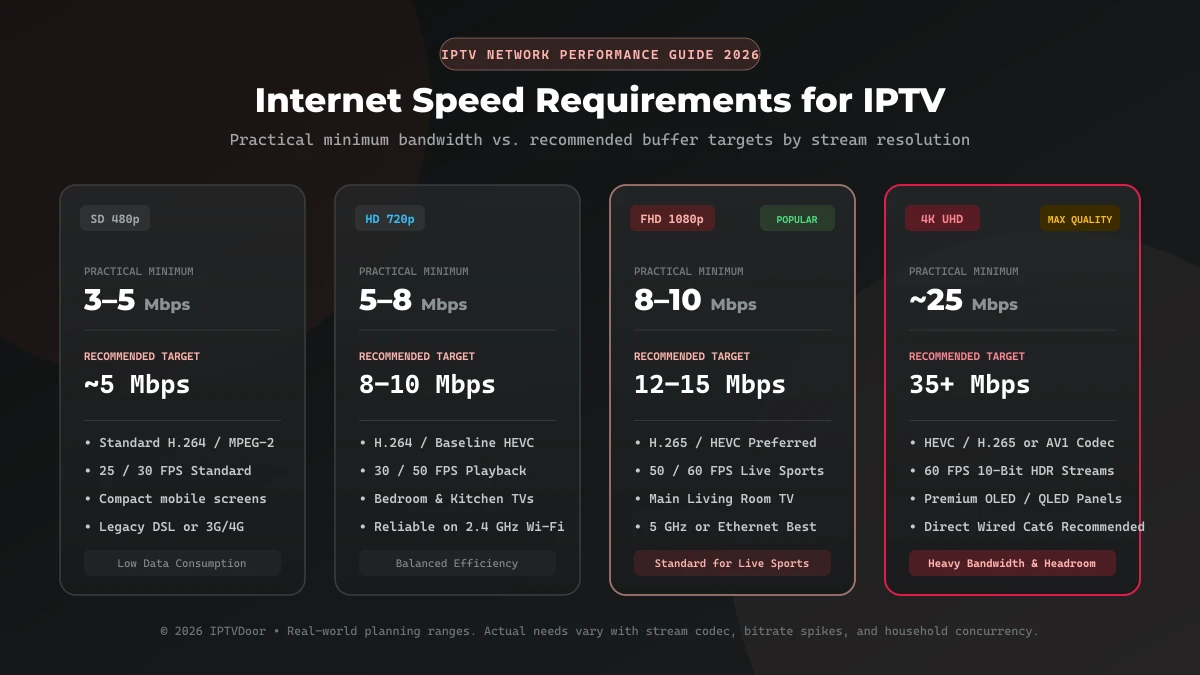
If your sync problem occurs alongside buffering or freezing, review our guide on how to fix IPTV buffering only at night and what internet speed do you need for IPTV. If video disappears completely, check IPTV black screen but audio works.
[IPTVDOOR_OFFER_CARD]
One Channel Is Out of Sync — What Does It Mean?
If Channel A and Channel C stream with perfect dialogue alignment while Channel B displays persistent IPTV sound not matching picture errors, the problem is associated with that specific broadcast stream or source feed.
Broadcasters transcode feeds independently. If an upstream encoder experiences clock drift or timestamps audio and video out of phase, every subscriber receives the same offset.
Follow these steps:
- Test another channel in your guide.
- Restart the affected channel.
- Test the same channel on another device if possible.
- Record the channel name, category, and time.
- Contact customer support if the issue persists across devices.
All IPTV Channels Are Out of Sync
When every channel in your playlist displays noticeable audio/video misalignment, the issue resides locally in your player, decoder, streaming device, television, or soundbar.
Resolve universal lip-sync issues in this recommended order:
- Restart the IPTV app and reboot your device.
- Test another player application, such as those featured in our best IPTV players for Smart TV in 2026.
- Test built-in TV speakers.
- Change video decoder mode (Hardware vs Software).
- Check audio delay settings.
- Check TV picture processing and enable Game Mode.
- Check soundbar or AV receiver settings.
- Test your streaming device on another screen.
IPTV Audio Is Fine at First but Drifts Later
Progressive audio drift occurs when an IPTV stream starts in perfect synchronization but gradually detaches over twenty to sixty minutes of playback. This behavior stems from clock drift, buffer creep, or stream timestamp issues during extended sessions.
Apply these recommended actions:
- Zap channels up and down to flush buffer memory instantly.
- Restart the application.
- Test another decoder mode in player settings.
- Test another channel to verify if drift is feed-specific.
- Test an alternate IPTV player with robust clock synchronization.
IPTV Audio and Video Out of Sync on Firestick
When dealing with an IPTV Firestick audio delay, specific Fire OS configuration options frequently resolve the timing error:
- Restart Firestick: Hold the Select and Play/Pause buttons simultaneously for five seconds.
- Test TV Speakers: Disconnect Bluetooth soundbars and check baseline synchronization.
- Check Audio Settings: Turn off Volume Leveling and Dialogue Enhancer under Advanced Audio.
- Run AV Sync Tuning: Use Fire OS's built-in calibration tool under Display & Audio to align audio beeps.
- Test Without Bluetooth: Remove wireless headphones to eliminate RF latency.
- Test Another Decoder Mode: Toggle Hardware/Software decoding inside your player.
- Check HDMI Path: Connect the Firestick directly to high-speed HDMI inputs. For setup advice, consult our IPTVDoor setup and installation instructions.
IPTV Audio and Video Out of Sync on Smart TV
Streaming live television on Samsung Smart TVs (Tizen), LG Smart TVs (webOS), or Android/Google TVs can introduce IPTV Smart TV audio delay:
- TV Audio Delay Settings: Adjust the digital sound output delay slider in your TV's expert audio menu.
- Motion Processing: Turn off TruMotion, Auto Motion Plus, or MEMC in picture settings.
- External Soundbars: Check optical and HDMI eARC passthrough settings.
- TV Speakers Test: Verify baseline sync using built-in television speakers.
For device configuration walkthroughs, review our IPTVDoor installation guide.
IPTV Audio Delay With a Soundbar
To troubleshoot soundbar lip-sync discrepancies, execute this simple isolation test:
$\text{Streaming Device} \longrightarrow \text{TV Speakers} \quad \text{vs.} \quad \text{Streaming Device} \longrightarrow \text{Soundbar}$
If dialogue is synchronized through TV speakers but delayed through the soundbar, the external audio path is involved:
- Check the soundbar's internal lip-sync adjustment slider.
- Use HDMI eARC instead of optical cables to enable automated latency reporting.
- Set TV digital output to Pass-Through.
- Avoid connecting living room soundbars over Bluetooth.
IPTV Audio and Video Out of Sync After an App or Device Update
Software updates to player apps, TV firmware, Fire OS, Android TV, or audio codecs can change playback behavior overnight.
Follow these recommended steps:
- Restart your streaming device and television.
- Recheck player settings to ensure preferences were not reset.
- Test your decoder mode (Hardware vs Software).
- Test another audio output mode (Stereo PCM vs Passthrough).
- Test another player application.
- Check whether the issue affects every channel or only specific feeds.
IPTV Audio/Video Sync Troubleshooting Decision Tree
Follow this structured troubleshooting workflow to isolate your lip-sync problem quickly:
flowchart TD
    A[Audio & Video Out of Sync] --> B{Is only ONE channel affected?}
    B -- YES --> C[Source / Stream Issue]
    C --> C1[Reload Channel & Test Alternate Device]
    C --> C2[Report to Provider Support if Persistent]

    B -- NO --> D{Do other apps also lag?}
    D -- YES --> E[TV Processing or Soundbar Delay]
    E --> E1[Switch TV to Game Mode]
    E --> E2[Disable Motion Smoothing]
    E --> E3[Adjust Soundbar Lip-Sync]

    D -- NO --> F{Do TV speakers play in sync?}
    F -- YES --> G[External Audio Latency]
    G --> G1[Disable Bluetooth Audio]
    G --> G2[Select Stereo PCM Output]

    F -- NO --> H[IPTV Player & Decoder Setting]
    H --> H1[Switch Hardware vs Software Decoder]
    H --> H2[Adjust Player Audio Delay Slider]
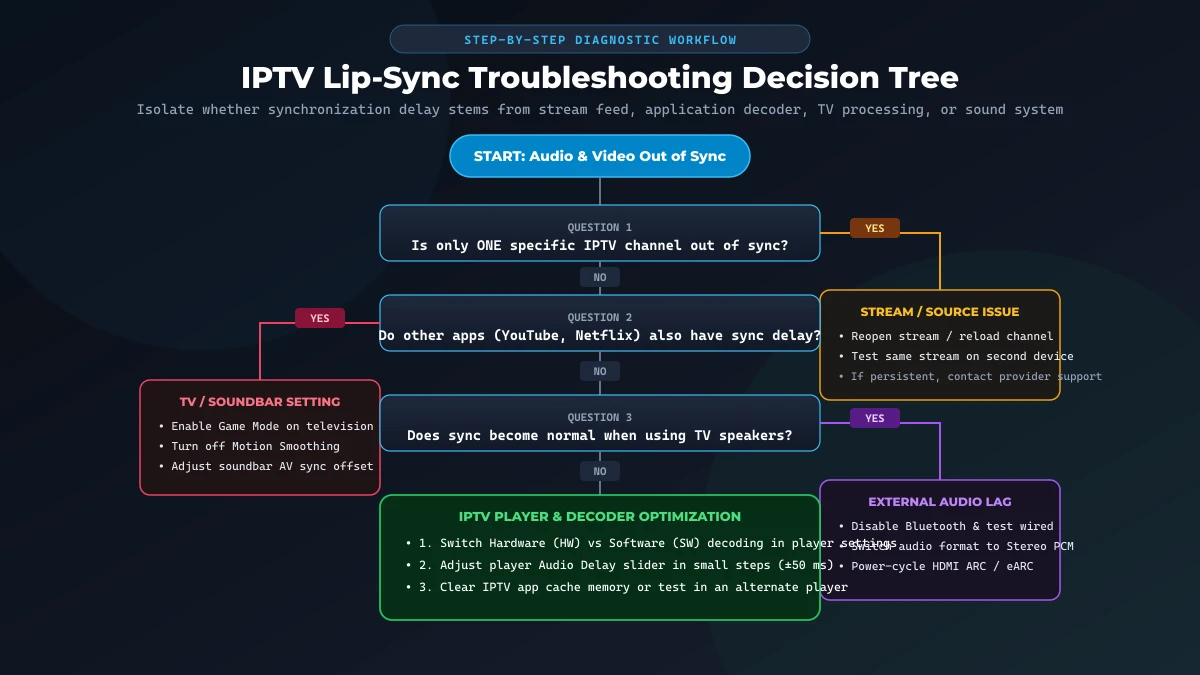 IPTV audio video sync troubleshooting decision tree infographic
Quick Fix Checklist
Review this concise checklist whenever dialogue fails to match picture on your screen:
- Restart the IPTV channel
- Restart the IPTV app
- Test another channel in your guide
- Test another streaming app on the same device
- Test built-in TV speakers without external audio
- Adjust the player audio delay slider in small 25 ms steps
- Switch between Hardware and Software video decoding
- Disable Bluetooth audio and test wired connections
- Check soundbar or AV receiver lip-sync settings
- Test stereo or PCM digital audio output format
- Check HDMI cables and ARC/eARC connections
- Test playback on another compatible device
- Contact support if only one broadcast source remains affected
When Should You Contact IPTVDoor Support?
Contact IPTVDoor customer support when local troubleshooting indicates an upstream broadcast error:
- The same channel is consistently out of sync across multiple separate devices.
- The issue remains after restarting the channel and player.
- Other channels in your subscription playlist stream in perfect synchronization.
- Player and device troubleshooting does not resolve the discrepancy.
When contacting support, provide your channel name, streaming device, IPTV player app, whether built-in TV speakers were tested, and approximate time of occurrence.
[IPTVDOOR_OFFER_CARD]
Frequently Asked Questions
Conclusion
Resolving IPTV audio and video out of sync in 2026 comes down to systematic isolation. Identifying whether timing offsets stem from TV picture processing, media player decoders, wireless Bluetooth links, or external soundbars allows you to apply targeted fixes without guesswork.
Fine-tuning your media player's A/V sync offset in measured 50 ms steps, enabling TV Game Mode, toggling hardware decoding, and testing direct TV speakers eliminates lip-sync drift and restores seamless dialogue.
For dependable high-definition entertainment, browse our IPTVDoor subscription pricing, review our international channel lineups, or follow the IPTVDoor installation guide. If you have questions, explore our frequently asked questions or contact our customer support team.