IPTV Buffering Only at Night: Why It Happens in 2026
If your IPTV works perfectly during the day but starts buffering every evening, you are not necessarily dealing with a problem on your device.
Nighttime buffering is one of the more confusing IPTV problems because everything may appear normal earlier in the day. Your internet connection works, websites load normally, and the same channels may play smoothly in the morning. Then, during the evening, streams begin freezing, lowering in quality, or constantly loading.
The reason is that streaming performance depends on more than your advertised internet speed.
Network congestion, Wi-Fi interference, server load, stream bitrate, device performance, and routing between your ISP and the streaming server can all affect playback.
This guide explains why IPTV may buffer specifically at night and what you can check before assuming that your entire IPTV setup is faulty.
IPTV Evening Nighttime Stream Buffering TroubleshootingWhy Does IPTV Buffer More at Night?
The evening is typically the busiest period for home internet usage.
People return from work or school and start using:
- Streaming services
- Video calls
- Online gaming
- Social media
- Cloud applications
- Smart TVs
- Phones and tablets
- Multiple streaming devices
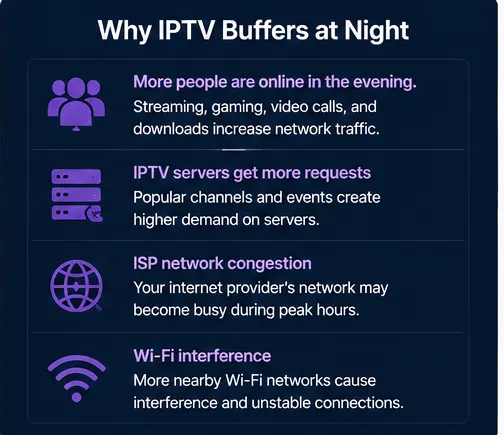
This increases demand on local networks and, in some situations, can also increase congestion elsewhere between your home and the streaming server.
There is another important factor: IPTV servers themselves can experience higher demand during popular viewing periods. If you also experience issues where channels load but won't play, server overload or connection limits might be involved.
If a stream is heavily requested during the evening, the server or network delivering it may have more traffic to handle.
This means your IPTV can buffer at night even if a speed test still reports a relatively high download speed.
1. Your Home Network May Be Congested
The first thing to investigate is what else is using your internet connection.
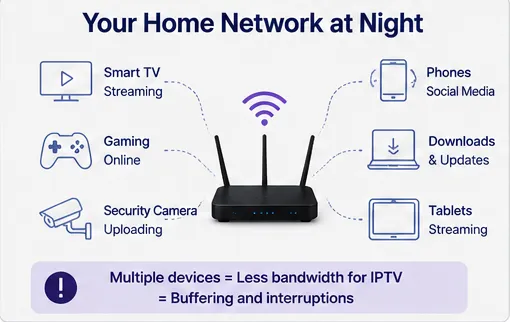
Imagine that your IPTV device has a stable connection, but several other devices are simultaneously downloading or streaming.
For example:
- One TV is streaming video
- Someone is playing an online game
- Several phones are connected
- A computer is downloading large files
- Cloud backups are running
- Security cameras are uploading video
Your IPTV stream is competing with those activities for bandwidth.
What to try
Temporarily disconnect unnecessary devices and test IPTV again.
If buffering improves immediately, your home network is probably part of the problem.
You can also check your router's connected-device list to see which devices are consuming bandwidth.
 Home Network Bandwidth Competition Across Multiple Devices
2. Wi-Fi Can Become Less Reliable in the Evening
Wi-Fi performance is affected by more than your internet package.
In apartment buildings and densely populated areas, many nearby routers may be using the same wireless channels.
During the evening, more people are at home and actively using their Wi-Fi networks.
This can increase wireless interference.
If your IPTV device is connected through Wi-Fi, try:
- Moving the device closer to the router
- Using the 5 GHz network when appropriate
- Restarting the router
- Reducing the distance between the router and streaming device
- Removing physical obstructions
- Using Ethernet instead of Wi-Fi
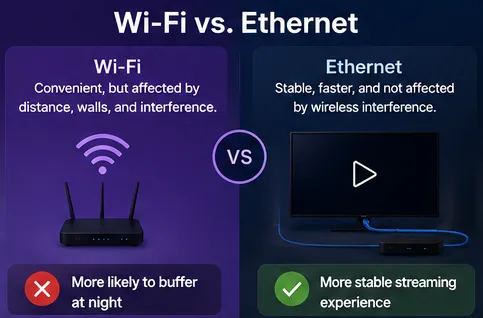
An Ethernet connection is particularly useful for troubleshooting because it removes many wireless variables.
If IPTV becomes stable over Ethernet but continues buffering over Wi-Fi, your wireless network deserves further investigation.
 Wi-Fi vs Wired Ethernet Connection for IPTV Streaming
3. The IPTV Server May Be Busier at Night
Not every buffering problem originates in your home.
IPTV servers and streaming infrastructure can experience different levels of demand throughout the day.
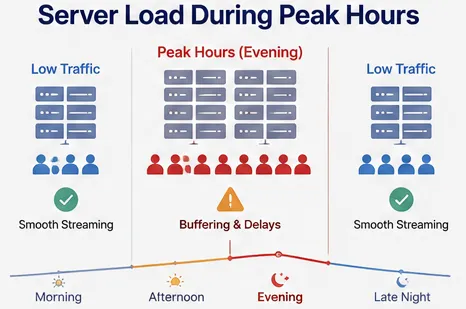
Popular evening hours can produce significantly more simultaneous viewers.
If a particular stream becomes unreliable only during peak viewing hours, the stream provider's infrastructure may be struggling with demand.
You can test this by comparing the same channel at different times.
For example:
Morning: Channel plays normally.
Afternoon: Channel plays normally.
Evening: Channel buffers repeatedly.
If this pattern repeats over several days, the timing itself is useful evidence.
Try several different channels as well.
If only a few channels buffer at night, the issue may be related to specific streams rather than your entire connection.
 IPTV Server and Network Infrastructure Peak Hours Congestion
4. Your Internet Speed May Not Be the Real Problem
Many users immediately run a speed test when IPTV starts buffering.
A speed test is useful, but it does not tell you everything.
You could have a fast connection while still experiencing:
- Packet loss
- High latency
- Jitter
- Congestion
- Poor routing
- Wi-Fi interference
For streaming, connection stability matters just as much as raw download speed.
A connection that briefly drops packets can cause playback interruptions even when a speed test shows excellent download performance.
When troubleshooting, look beyond the headline Mbps number.
5. Test IPTV Directly With Ethernet
One of the simplest ways to determine whether Wi-Fi is involved is to connect your IPTV device directly to your router using Ethernet.
Then compare:
Wi-Fi → Buffering
Ethernet → Smooth playback
If this happens consistently, your wireless network is likely contributing to the problem.
If both connections buffer at exactly the same times, investigate other possibilities such as server-side congestion or routing.
Ethernet is especially useful for devices that remain in one location, such as:
- Smart TVs
- Android TV boxes (check our device setup guide)
- Fire TV devices with Ethernet adapters
- Desktop computers
6. Check Other Streaming Services
Try another legitimate streaming service during the same period when IPTV begins buffering.
This can help separate a general internet problem from an IPTV-specific problem.
For example:
IPTV → Buffering
Other streaming services → Smooth
This suggests the issue may be specific to the IPTV stream, provider infrastructure, routing, or player.
If multiple unrelated streaming services also buffer at the same time, investigate your home network or ISP connection.
This comparison is more useful than relying on a single speed test.
7. Your Router May Need Attention
Home routers run continuously and can occasionally develop temporary performance problems.
Before changing advanced settings, try a simple restart.
Turn the router off, wait briefly, and restart it.
After the connection returns, test IPTV again during the period when buffering normally occurs.
Also check whether your router has:
- Outdated firmware
- Too many connected devices
- Overheating
- Quality-of-Service settings
- Bandwidth management options
If your router supports Quality of Service (QoS), it may allow you to prioritize important traffic or devices.
However, do not change advanced settings randomly. Make one change at a time and test the result.
8. Check for Background Downloads and Updates
Some devices perform downloads automatically.
Examples include:
- Operating system updates
- Game updates
- Cloud synchronization
- Photo backups
- Application updates
- Computer downloads
These activities may not be obvious to the person watching IPTV.
If buffering starts at roughly the same time every evening, check whether another device is performing scheduled downloads or backups.
Pause those activities temporarily and see whether IPTV playback improves.
9. Try Different IPTV Channels
Testing multiple channels is essential.
If every channel buffers at night, investigate your network and overall service connection.
If only certain channels buffer, the problem may be associated with those streams.
Pay attention to whether the affected channels share something in common:
- Same category
- Same resolution
- Same language
- Same server group
- Same video format
If HD channels work while specific 4K streams buffer, the problem may involve stream bitrate or device performance rather than basic internet connectivity.
10. Check Your IPTV Player
The IPTV application can also contribute to playback problems.
Different IPTV players use different playback engines and buffering systems.
If you experience an IPTV black screen with working audio, decoder compatibility or video hardware acceleration settings could also be causing the freeze.
If you consistently experience nighttime buffering, test the same legitimate IPTV account or playlist with another compatible player if your subscription permits it.
If one player buffers while another plays the same stream smoothly, investigate the original application's settings.
Look for options related to:
- Buffer size
- Hardware decoding
- Software decoding
- Video acceleration
- Playback engine
Do not change every setting simultaneously.
Change one option, test playback, and then compare the result.
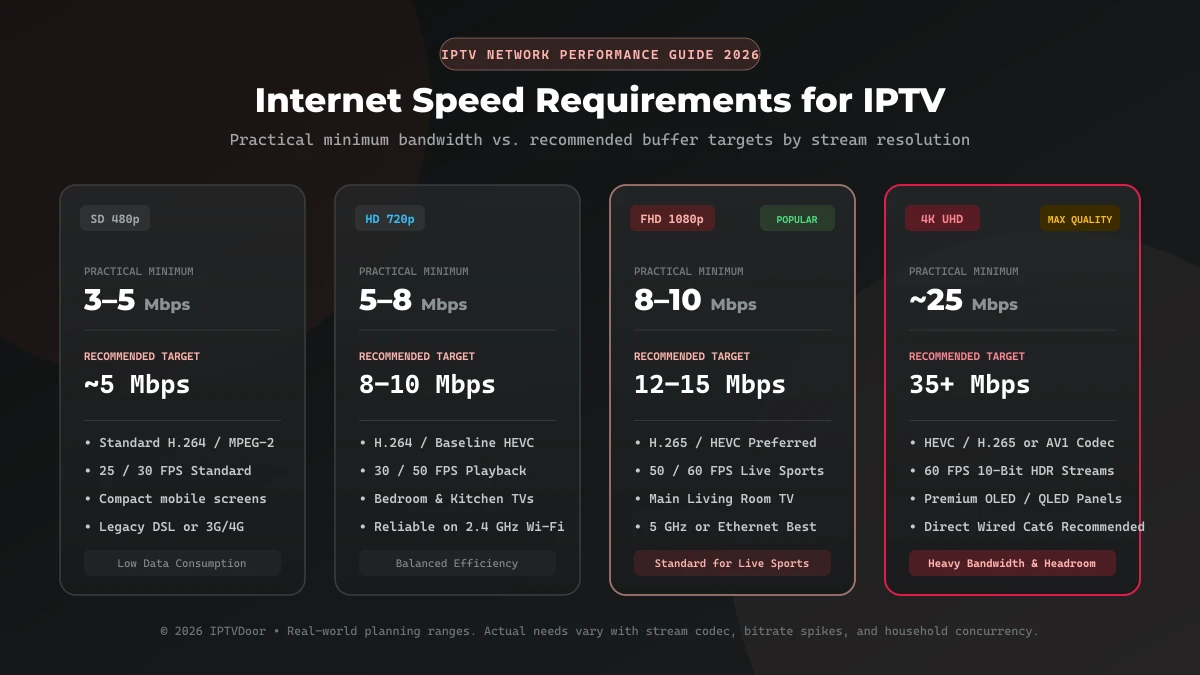
11. High-Resolution Streams Require More Resources
4K streams can require considerably more bandwidth and device processing than lower-resolution streams.
If your IPTV setup is stable with HD channels but struggles with 4K during busy periods, compare the two.
For example:
HD → Stable
4K → Frequent buffering
This could indicate that the 4K stream has a higher bitrate or that the device has less processing headroom.
Try a lower-resolution version of the same channel if one is available.
If the lower-resolution version remains stable, you have identified an important clue.
 Testing HD and 4K Stream Resolution Performance
12. ISP Routing Can Affect Streaming
Your internet provider does not necessarily connect directly to every streaming server.
Traffic may travel through multiple networks before reaching its destination.
This means two people with the same download speed can sometimes experience different streaming performance.
Routing changes, congestion, or latency along the path can affect certain destinations more than others.
If IPTV works smoothly at some times and becomes unreliable at others, while other services remain stable, routing or congestion may be worth discussing with your ISP.
You can provide them with:
- Approximate time of the problem
- Your connection type
- Whether Ethernet was tested
- Whether other services work normally
- Whether the issue happens on multiple devices
13. Test at Different Times of Day
Keep a simple record for a few days.
For example:
| Time | IPTV Performance |
|---|---|
| 9:00 AM | Smooth |
| 1:00 PM | Smooth |
| 5:00 PM | Mostly smooth |
| 8:00 PM | Frequent buffering |
| 11:00 PM | Improving |
This type of pattern is much more useful than simply saying "IPTV buffers."
If the same pattern happens repeatedly, you have stronger evidence that peak-hour conditions are involved.
14. When Should You Contact Your IPTV Provider?
Contact your provider when you have already ruled out obvious local problems. Check your active IPTV subscription details before submitting a support request.
Give them useful information instead of only saying that the service buffers.
Include:
- Specific channel names
- Approximate time buffering begins
- Your device model
- IPTV player
- Wi-Fi or Ethernet
- Whether other channels work
- Whether the problem occurs every night
- Whether other streaming services work normally
If only particular channels buffer consistently during peak hours, mention those channels specifically through our customer support portal.
This can help the provider determine whether there is a stream-side issue.
15. When Should You Contact Your Internet Provider?
Your ISP may be worth contacting if:
- Multiple streaming services buffer
- Ethernet has the same problem as Wi-Fi
- Your connection becomes unstable at night
- You observe packet loss
- Latency increases significantly
- Other devices also experience network problems
Explain that the issue appears at specific times and provide examples.
A recurring evening pattern may be more useful to technical support than a one-time speed test.
 IPTV Nighttime Buffering Troubleshooting Checklist
IPTV Buffering at Night: Quick Checklist
Before changing anything complicated, follow this order:
- Test several IPTV channels.
- Check whether the problem happens only at night.
- Test another streaming service.
- Disconnect unnecessary devices.
- Pause downloads and cloud backups.
- Restart your router.
- Test IPTV over Ethernet.
- Restart the IPTV application.
- Try another compatible IPTV player.
- Compare HD and 4K channels.
- Check your router and Wi-Fi environment.
- Record the exact times when buffering occurs.
- Contact your IPTV provider if only its streams are affected.
- Contact your ISP if the wider internet connection is affected.
IPTV Buffering at Night vs. Buffering All Day
These patterns can point toward different causes.
| Pattern | Possible Cause |
|---|---|
| Buffers all day | Local network, device, service, or stream problem |
| Only buffers on Wi-Fi | Wireless interference or signal quality |
| Only buffers on 4K | Bitrate, codec, device, or bandwidth limitation |
| Only certain channels buffer | Individual stream or server issue |
| All IPTV channels buffer at night | Peak-hour congestion or network conditions |
| All streaming services buffer | Home network or ISP issue |
| IPTV buffers but other services work | IPTV stream, provider, player, or routing issue |
Frequently Asked Questions
Final Thoughts
IPTV buffering that appears only at night is usually a pattern worth investigating rather than a reason to immediately replace your device or internet package.
Start by determining whether the problem affects every channel or only specific streams.
Then compare Wi-Fi with Ethernet, test other streaming services, disconnect unnecessary devices, and check whether the issue happens at the same time every evening.
If the problem only affects IPTV while other services remain stable, the stream, player, provider infrastructure, or routing may deserve closer attention.
If your entire internet connection becomes unstable at night, the problem is more likely to involve your home network or ISP.
The key is to troubleshoot systematically and change one variable at a time. This makes it much easier to identify the actual source of the buffering instead of guessing.