IPTV Channels Load but Won't Play: What to Check in 2026
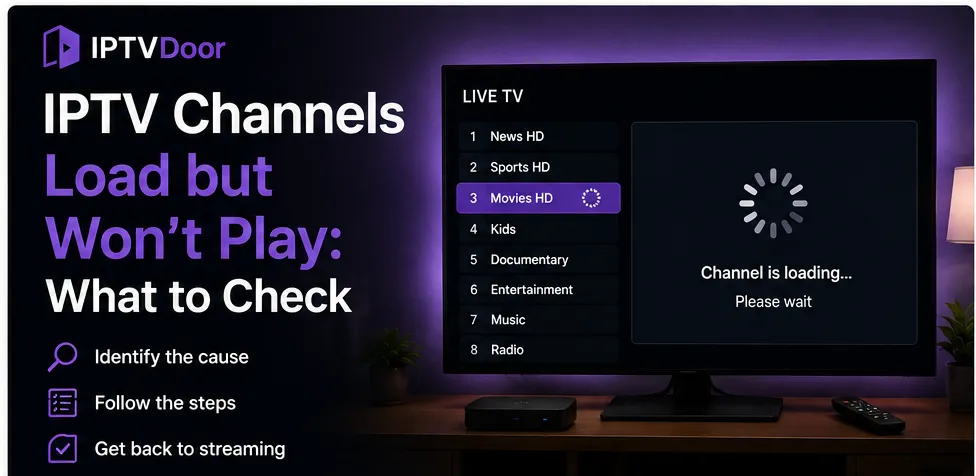
Seeing your IPTV channel list load correctly but getting no playback when you select a channel can be confusing. The playlist appears to be working, the channel names are visible, and sometimes the electronic program guide even loads — yet the video refuses to start.
This type of problem does not always mean that your IPTV setup is broken.
The cause can be related to the IPTV player, the stream itself, your internet connection, device compatibility, expired credentials, decoder settings, or a temporary server issue.
In this guide, we will go through the most common reasons IPTV channels load but won't play and the practical checks you can perform before contacting support.
IPTV Channel List Loading but Video Stream FailingWhat Does It Mean When IPTV Channels Load but Won't Play?
When your channel list appears correctly, your IPTV application has usually managed to retrieve at least part of the playlist or account information.
The problem happens at the next stage: actually opening the video stream.
You may see symptoms such as:
- The channel loads indefinitely
- A spinning loading icon appears
- The screen stays black (see our guide on IPTV black screen with working audio)
- The player returns to the channel list
- You get a playback error
- Audio starts but video does not
- The channel opens for a few seconds and then stops
- Some channels work while others do not
These symptoms can have different causes, so it is important to identify exactly what is happening before changing multiple settings.
1. Test Several Different Channels
The first thing to do is test more than one channel.
Do not assume that because one channel does not play, the entire IPTV service is unavailable.
Try:
- A different channel from the same category.
- A channel from another category.
- An HD channel.
- If available, an SD channel.
- Another type of content such as a movie or series.
If only one or two channels fail while everything else plays normally, the problem may be specific to those streams.
If absolutely nothing plays, continue with the troubleshooting steps below.
2. Check Your Internet Connection
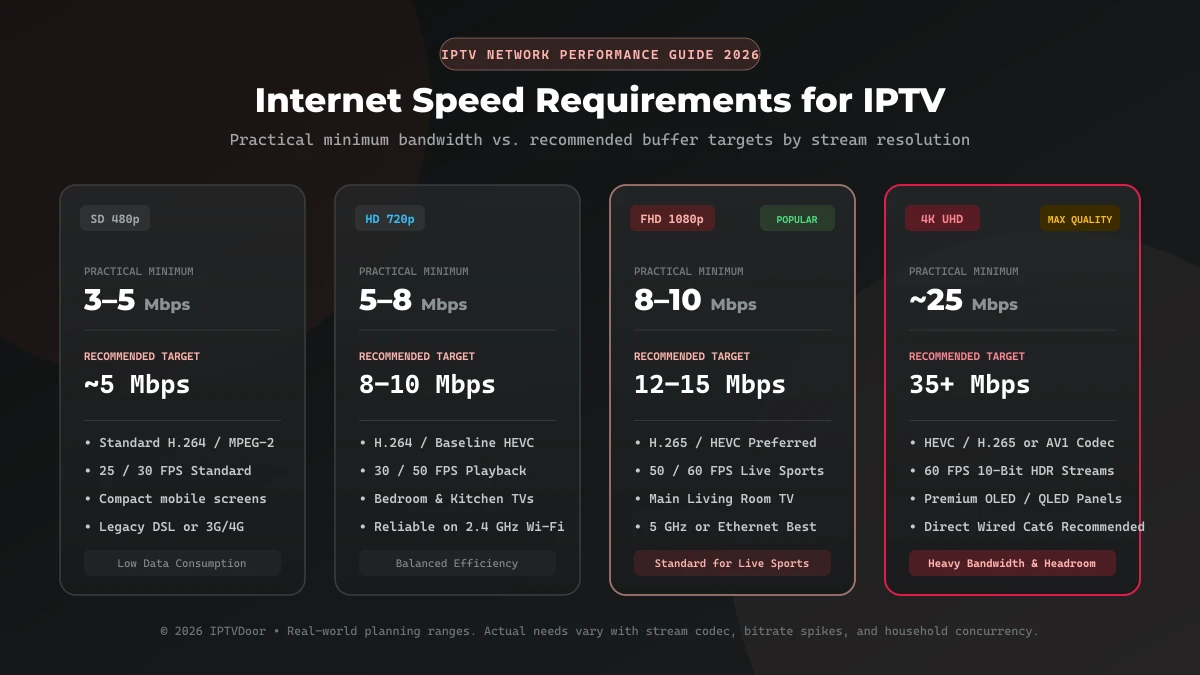
A playlist can load even when your connection is not stable enough for continuous video streaming.
Browsing a website or loading the IPTV channel list requires much less bandwidth than maintaining a continuous video stream.
Check your connection directly on the device running the IPTV application.
Pay attention to:
- Download speed
- Connection stability
- Wi-Fi signal strength
- Packet loss
- Network congestion
- Other devices using the connection
If possible, test the device using an Ethernet connection.
A wired connection can eliminate Wi-Fi interference and help determine whether the problem is related to wireless connectivity.
If IPTV works over Ethernet but not Wi-Fi, the IPTV player itself may not be the problem.
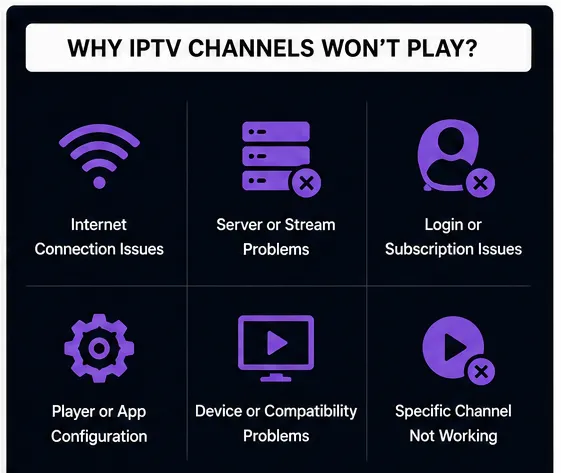 Testing IPTV Network Connection and Restarting Streaming App
3. Restart the IPTV Application
A simple restart can resolve temporary playback problems.
Completely close the IPTV application rather than simply returning to the device's home screen.
Then reopen it and try the channel again.
If the problem continues, force-stop the application from your device settings if that option is available.
For Android-based devices, the process is usually similar to:
Settings → Apps → IPTV Player → Force Stop
Then launch the application again.
Avoid changing multiple advanced settings before trying this simple step.
4. Restart Your Streaming Device
The device itself can sometimes have a temporary playback or decoder problem.
Restart your:
- Fire TV Stick (see our device setup guide)
- Android TV box
- Smart TV
- Smartphone
- Tablet
- Computer
After restarting, open the IPTV player again and test several channels.
A full reboot can clear temporary memory and decoder issues that may not disappear simply by closing the application.
5. Check Your IPTV Login and Subscription Status
If the channel list loads but playback fails, your account may still be relevant.
Some IPTV systems can display cached or previously loaded playlist information even when the account or server connection has changed.
Check:
- Username
- Password
- Server URL
- Subscription expiration date
- Number of allowed connections
- Device limits
If your provider offers a customer portal, check whether the account is active on your IPTV subscription dashboard.
If the subscription has expired, contact the provider through its official support channel.
Do not repeatedly enter random server addresses or credentials. Use the exact information supplied by your provider.
6. Check Whether You Have Reached the Connection Limit
Some IPTV subscriptions limit the number of simultaneous connections.
For example, if your plan allows one connection and the same account is already being used on another device, attempting to start another stream may fail.
Check whether the account is currently active somewhere else.
Close the IPTV application on other devices and then test the channel again.
If the service works after disconnecting another device, the connection limit may explain the problem.
The exact rules depend on the provider and pricing plan.
7. Try Another IPTV Player
The IPTV player itself can be responsible for playback problems.
Different players use different playback engines and may handle codecs, streams, buffering, and authentication differently.
If your current application loads the channel list but refuses to play the streams, testing the same legitimate playlist or account with another compatible player can be useful.
This helps answer an important question:
Is the problem with the service, or is it with the application?
If the same channel works immediately in another compatible player, investigate the original application's settings.
If it fails in multiple players on the same device, investigate the stream, device, network, or account instead.
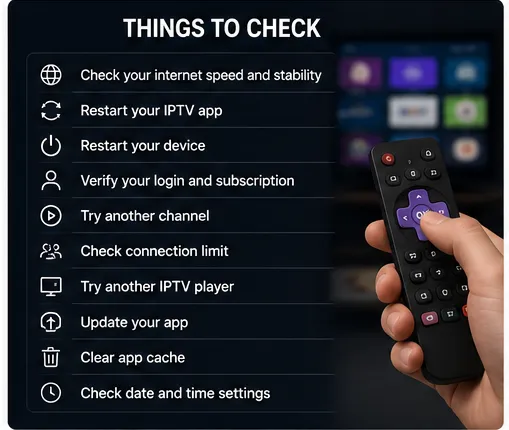 Hardware and Software Decoder Settings Troubleshooting
8. Check Hardware and Software Video Decoding
Some IPTV players allow you to select different decoding modes.
Depending on the application, you may see options such as:
- Hardware decoding
- Software decoding
- Hardware+
- Automatic
If a stream does not play correctly, try switching the decoder mode.
For example:
Hardware decoding → Software decoding
Then restart the stream.
If the channel starts playing after changing the decoder, the original decoding mode may not be fully compatible with that particular stream or device.
Keep in mind that software decoding can require considerably more CPU resources, especially with high-resolution video.
9. Check H.264 and H.265 / HEVC Compatibility
Video streams can use different codecs.
Two common formats are H.264 and H.265/HEVC.
Newer and higher-resolution streams may use HEVC because it can provide efficient compression.
However, device compatibility varies.
If standard HD channels play but certain 4K or HEVC channels refuse to start, your device or IPTV player may have difficulty handling that specific video format.
If an alternative version of the same channel is available, test it.
For example:
1080p → Works
4K HEVC → Does not play
That result points toward a possible codec, profile, bitrate, or hardware compatibility issue.
10. Check the IPTV Player's Buffer Settings
Buffering settings control how much video data the player attempts to prepare before playback.
If the buffer is too small for an unstable connection, playback may stop or fail to begin.
If your player provides buffer controls, experiment with a moderate buffer size.
Do not assume that the largest possible buffer is always best.
A very large buffer can increase the delay before live playback begins, while a very small buffer can make playback more sensitive to network fluctuations.
The ideal setting depends on:
- Internet stability
- Device performance
- Stream bitrate
- Player implementation
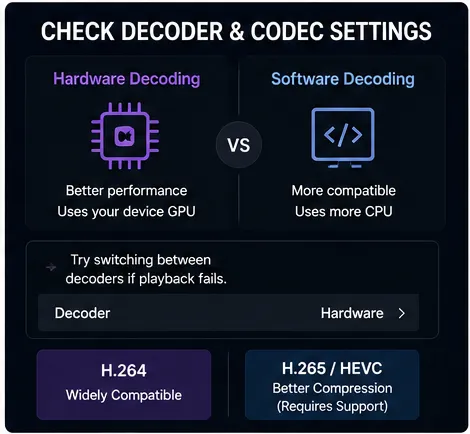 Clearing IPTV App Cache and Adjusting Buffer Settings
11. Clear the IPTV App Cache
A corrupted or outdated cache can sometimes interfere with application behavior.
If your IPTV player supports cache clearing, try:
Settings → Apps → IPTV Player → Clear Cache
Then reopen the application.
Be careful with the "Clear Data" option.
Clearing data can remove:
- Saved accounts
- Playlists
- Application preferences
- Login information
Use Clear Data only when necessary and make sure you have your login information before doing so.
12. Check Your Device's Date and Time
Incorrect system time can sometimes interfere with authentication, secure connections, and application behavior.
Make sure your device is using automatic date and time settings.
On most modern devices, enable:
- Automatic date and time
- Automatic time zone
Then restart the IPTV application.
This is a simple check that can eliminate unexpected authentication or connection problems.
13. Check Whether the Problem Is Device-Specific
Try the same legitimate IPTV account or playlist on another compatible device if your subscription permits it.
For example:
Device A → Channels load but won't play
Device B → Same channel plays normally
This strongly suggests that the problem may be related to Device A.
Possible causes include:
- Unsupported codec
- Outdated operating system
- IPTV application problem
- Hardware decoding issue
- Display compatibility
- Device performance
Testing another device is one of the fastest ways to narrow down the problem. Check our guide on compatible devices for performance benchmarks.
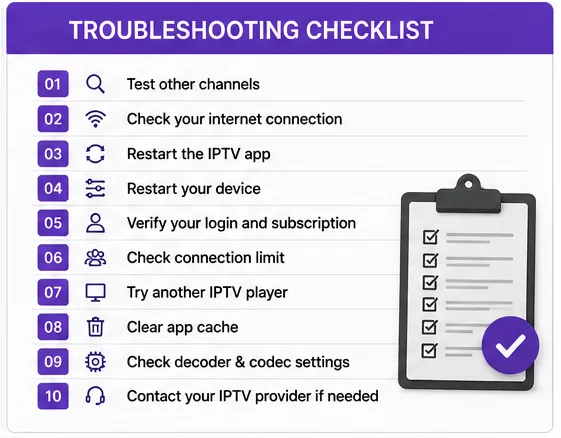 Testing IPTV Player on Compatible Streaming Devices
14. Check Whether the IPTV Server Is Experiencing Problems
Sometimes the issue is completely outside your device.
A provider's server or individual stream can experience:
- Temporary downtime
- Maintenance
- Overload
- Stream interruption
- Connection problems
If every device has the same playback problem while other internet services work normally, contact your IPTV provider through our contact page or support channels.
Before contacting support, gather useful information:
- Channel name
- Device model
- IPTV player
- Error message
- Whether other channels work
- Approximate time the problem started
This makes troubleshooting much easier.
15. What If Only Live Channels Don't Play?
If movies or series play normally but live channels do not, the problem may be specific to live streaming.
Live channels can behave differently from on-demand content because they require a continuous real-time stream.
Check:
- Whether multiple live channels fail
- Whether VOD content still works
- Whether the problem happens during peak hours
- Whether the issue affects all devices
If only live channels fail, tell your provider exactly that rather than simply reporting that "IPTV doesn't work."
16. What If IPTV Plays for a Few Seconds Then Stops?
A stream that starts successfully and then stops can indicate a different problem from a stream that never starts.
Possible causes include:
- Unstable internet connection
- Server instability
- Insufficient device resources
- Stream bitrate
- Decoder compatibility
- Connection limits
Try a different channel first.
If every channel stops after a similar amount of time, investigate your network and device.
If only one channel does it, the individual stream may be responsible.
 IPTV Playback Troubleshooting Checklist and Summary
Quick IPTV Playback Troubleshooting Checklist
If your IPTV channels load but won't play, follow this order:
- Test several different channels.
- Check your internet connection.
- Restart the IPTV application.
- Restart the streaming device.
- Check your account and subscription status.
- Make sure another device is not using the same account.
- Try another compatible IPTV player.
- Switch between hardware and software decoding.
- Check H.264/H.265 compatibility.
- Adjust the buffer settings.
- Clear the application's cache.
- Check your device's date and time.
- Test the same account on another compatible device.
- Check whether the provider is experiencing an outage.
- Contact the provider if the problem continues.
IPTV Channels Load but Won't Play: Common Causes
| Symptom | Possible Cause | What to Check |
|---|---|---|
| No channels play | Network or server issue | Internet and provider status |
| Only one channel fails | Individual stream problem | Try another channel |
| HD works but 4K fails | Codec/device limitation | HEVC and device support |
| Works in another player | Application issue | Player settings |
| Works on another device | Device-specific issue | Decoder and compatibility |
| Starts then stops | Network/server instability | Connection and stream |
| Audio works but video is black | Video decoder issue | Hardware/software decoding |
| Account works on one device only | Connection limit | Simultaneous connections |
Frequently Asked Questions
Final Thoughts
When IPTV channels load correctly but refuse to play, the problem is usually easier to diagnose than it first appears.
Start with simple tests: try several channels, restart the application and device, check your internet connection, and verify that your account is active.
If the problem continues, test another compatible IPTV player and check the device's video decoding settings. If only certain channels or resolutions fail, investigate codec and stream compatibility.
Most importantly, identify whether the problem affects one channel, multiple channels, one device, or every device. That single distinction can significantly reduce the amount of troubleshooting required.
For IPTVDoor users, keeping your streaming device, IPTV player, and network properly configured can help provide a smoother viewing experience.