IPTV EPG Not Working: Common Causes and How to Fix It
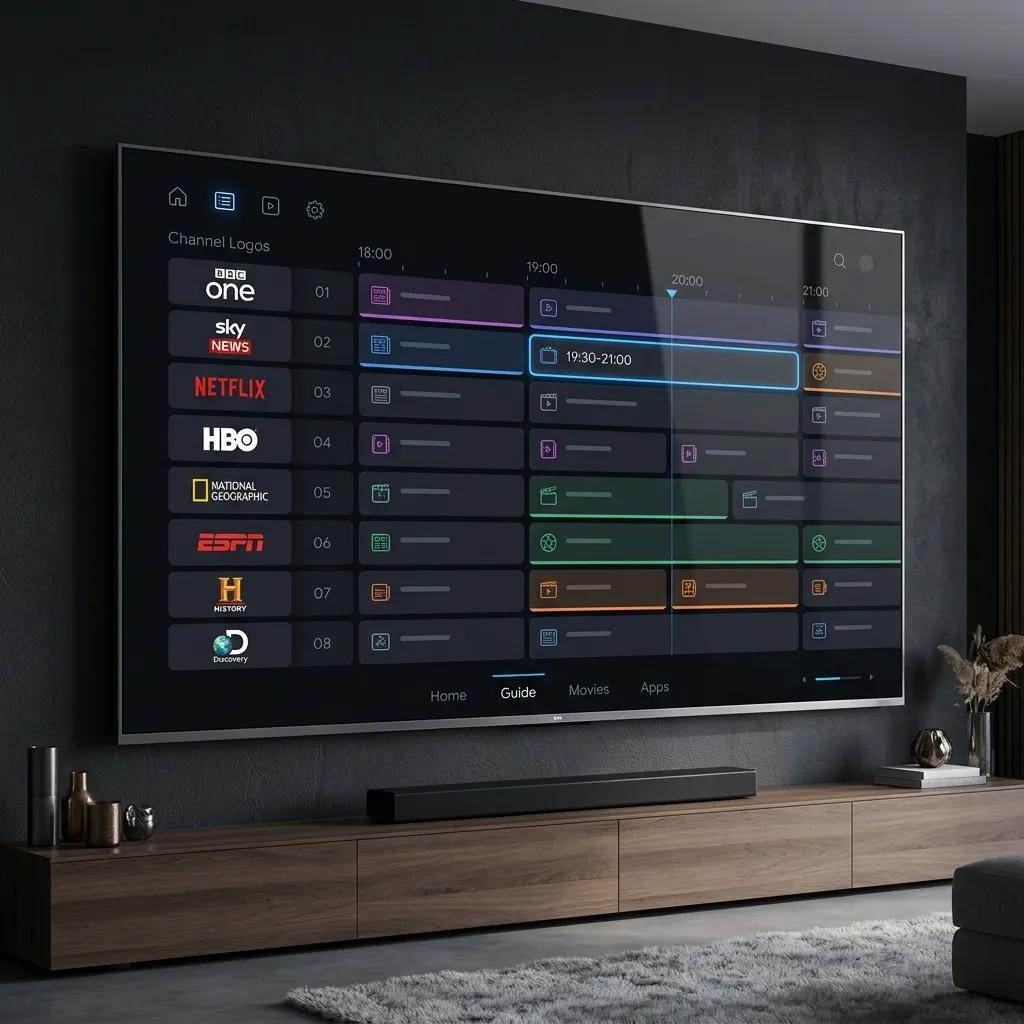
The Electronic Program Guide (EPG) is one of the most useful features of an IPTV setup. Instead of browsing through channels blindly, an EPG lets you see what is currently playing, what is coming next, and what programs are scheduled later.
But sometimes the IPTV EPG does not load at all, shows incorrect information, displays the wrong time, or stops updating.
If your IPTV channels work normally but the TV guide is missing or incorrect, the problem is usually related to the EPG source, application settings, time zone, playlist configuration, or temporary connectivity issues.
This guide explains the most common IPTV EPG problems and the practical steps you can take to fix them.
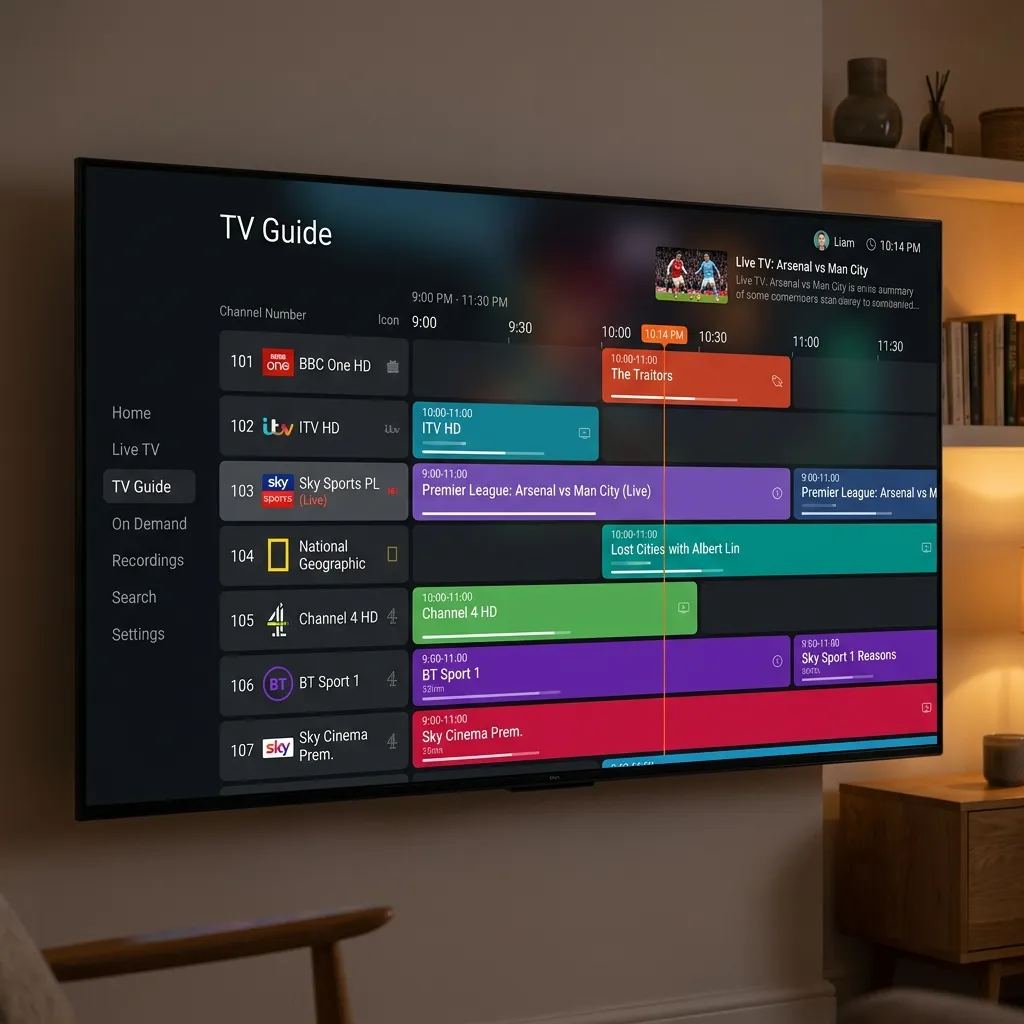
IPTV electronic program guide displayed on a modern Smart TV interfaceWhat Is an IPTV EPG?
EPG stands for Electronic Program Guide.
It provides program information for your IPTV channels, including:
- Current programs
- Upcoming programs
- Program titles
- Start and end times
- Channel information
- Program descriptions
- Sometimes movie and episode information
The EPG is separate from the actual video stream.
This means you can have perfectly working IPTV channels while the EPG is completely empty.
Understanding this distinction makes troubleshooting much easier. If you're experiencing a different issue where the stream itself fails, see our guide on IPTV Channels Load but Won't Play.
Why Is My IPTV EPG Not Working?
There are several possible reasons.
The most common include:
- Incorrect EPG URL
- Expired or unavailable EPG source
- Incorrect time zone
- Incorrect playlist configuration
- EPG data not assigned to channels
- Outdated IPTV application
- Temporary server problems
- Large EPG files taking time to process
- Device date and time settings being incorrect
- Network or DNS problems
The first step is determining exactly what is wrong with your guide.
1. Check Whether the EPG Is Completely Empty
Start by opening your IPTV application and checking several different channels.
If every channel shows "No Information" or has no program data, the EPG source may not have loaded correctly.
If only a few channels are missing information while others work normally, the problem may be related to channel mapping rather than the entire EPG.
This distinction is important because reinstalling your application will not necessarily fix missing data for individual channels.
2. Refresh the EPG
Many IPTV players have a manual EPG refresh option.
Open your IPTV application's settings and look for options such as:
- Refresh EPG
- Update EPG
- Reload TV Guide
- Update TV Listings
Start the refresh and allow it to complete.
Large EPG files can take some time to download and process, especially on slower devices.
Do not immediately close the application if the guide appears empty during the first few moments of the update.
3. Check the EPG URL
If your IPTV service provides a separate EPG URL, make sure it has been entered correctly.
A single missing character can prevent the guide from loading.
Check for:
- Missing characters
- Extra spaces
- Incorrect punctuation
- An incomplete URL
- An old EPG address
- Incorrect HTTP or HTTPS configuration
If your provider recently changed its EPG source, the old address may no longer work.
The safest option is to obtain the current EPG information directly from your legitimate IPTV service provider. If you need help with your provider's details, contact support or review your Pricing details to make sure your subscription is active.
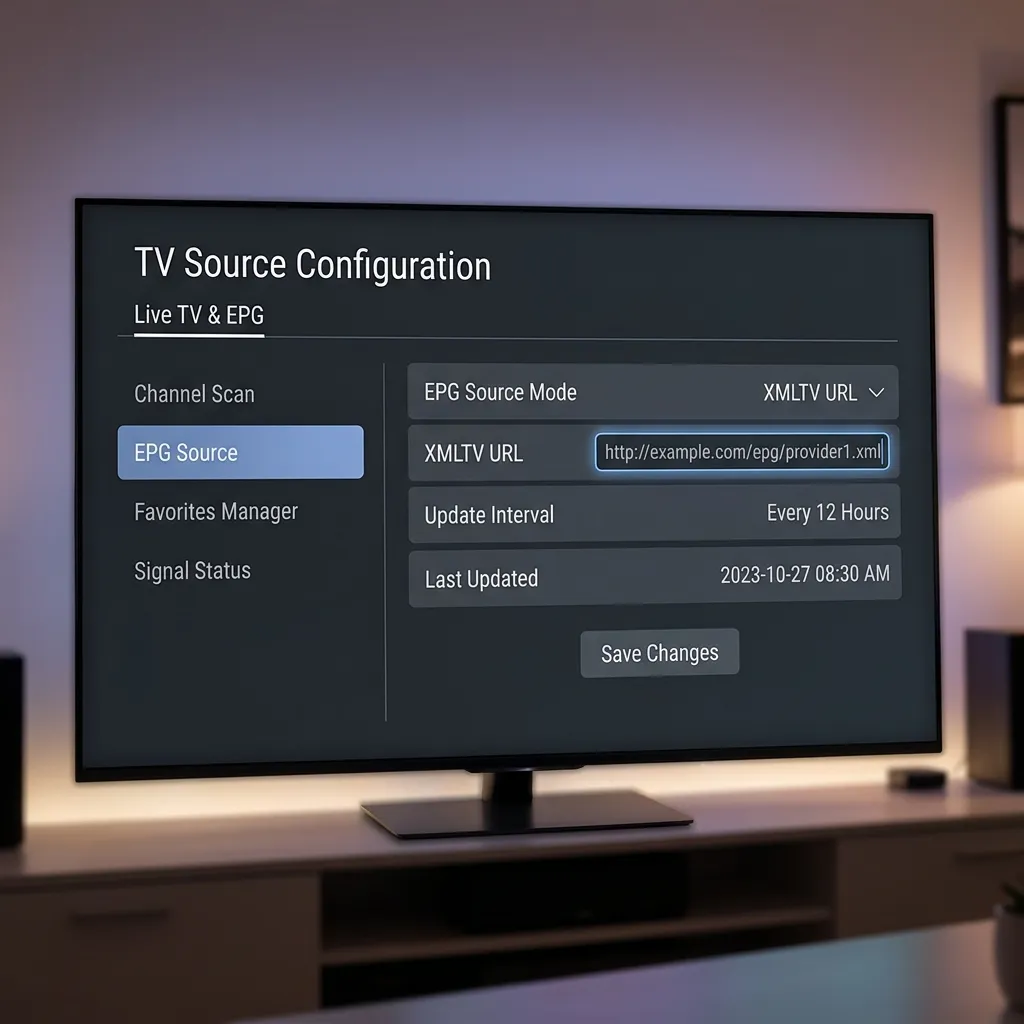 IPTV application settings showing an EPG/XMLTV configuration
4. Check Your Device's Date and Time
An incorrect date or time can cause EPG information to appear at the wrong time.
This is especially common after changing devices, resetting a Smart TV, or manually changing the time zone.
Make sure your device is configured to use the correct:
- Date
- Time
- Time zone
- Automatic time synchronization
If your device supports automatic date and time, enabling it can prevent many scheduling problems.
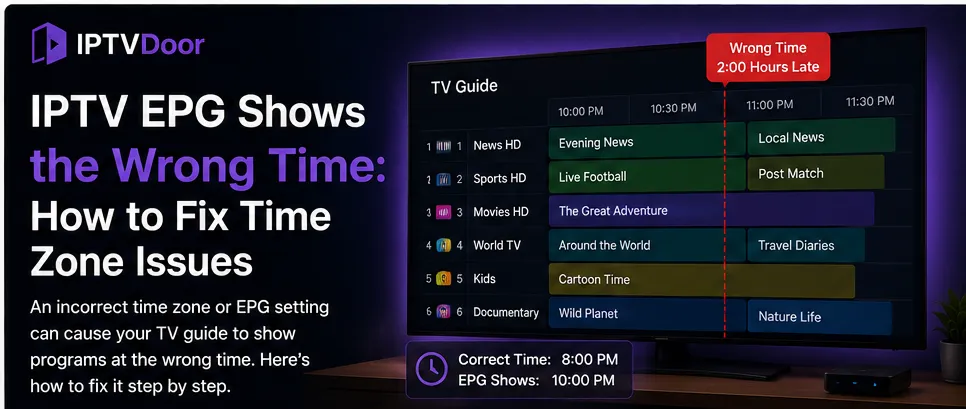
5. Fix the IPTV EPG Time Zone
Sometimes the EPG loads successfully but all programs appear one or several hours earlier or later than they should.
This is usually a time zone or offset issue.
For example, a program scheduled for 8:00 PM might appear as 7:00 PM.
Check the EPG or IPTV application's time zone settings.
Depending on the application, you may find options such as:
- EPG Time Shift
- Time Zone
- UTC Offset
- Automatic Time Zone
- EPG Correction
Do not randomly change the offset multiple times.
First determine the difference between the displayed program time and the actual scheduled time, then make the appropriate adjustment.
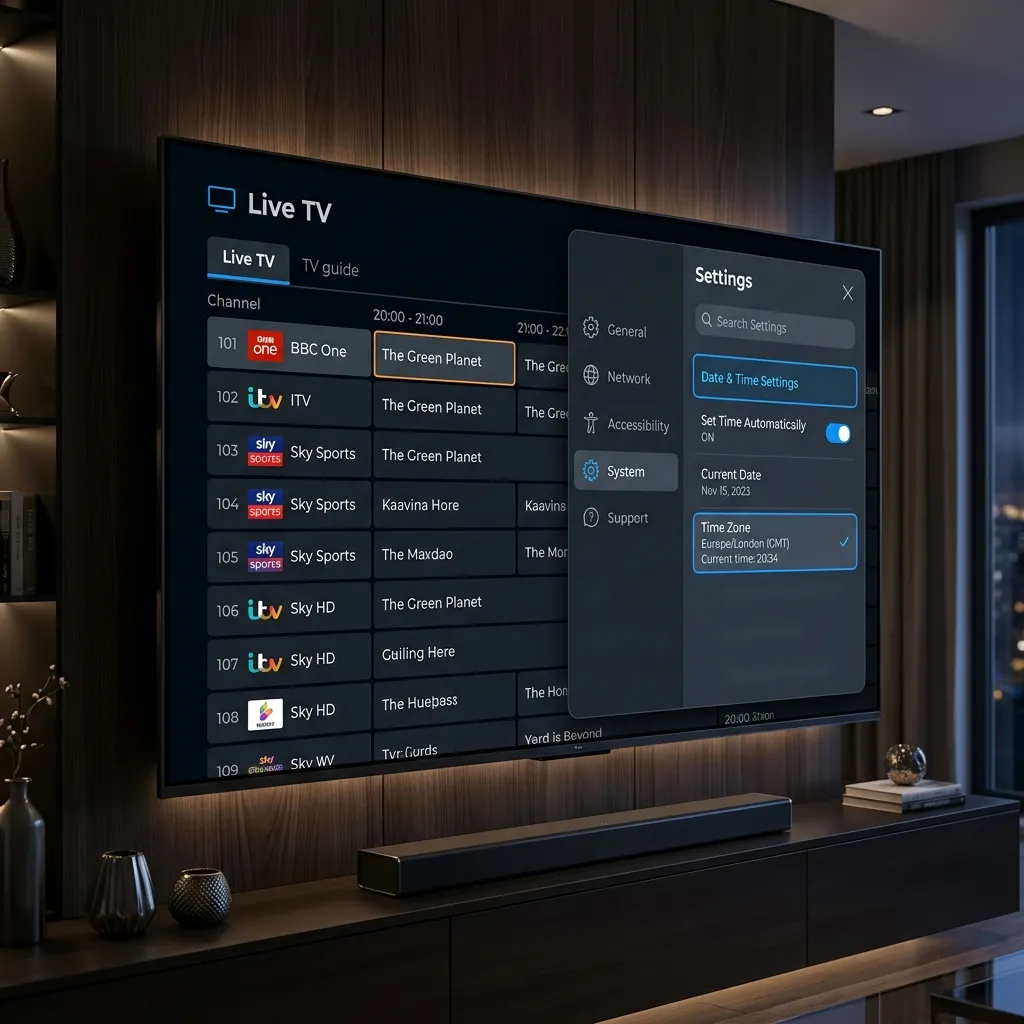 TV guide showing incorrect program times and a time zone/settings interface
6. Check the Playlist and EPG Mapping
Some IPTV applications need to match channels from your playlist with corresponding EPG identifiers.
If the channel names or identifiers do not match the EPG data, the guide may remain empty for those channels.
This can happen when:
- A provider changes channel names
- Channels are reorganized
- A playlist is manually edited
- An outdated EPG file is being used
If only certain channels are affected, contact your service provider or check whether your application allows manual EPG mapping.
7. Update Your IPTV Application
An outdated IPTV player can sometimes cause compatibility problems.
Check whether your application has an available update from its official source.
Updates can improve:
- EPG compatibility
- Playlist handling
- Performance
- Device compatibility
- Time zone handling
- General stability
Avoid downloading modified or unofficial versions of IPTV applications.
Using software from trusted sources reduces security and compatibility risks. If you are looking for recommended software for your hardware, take a look at our Setup Guide.
8. Clear the Application Cache
Temporary application data can occasionally become corrupted.
On many Android TV and Fire TV devices, you can clear an application's cache through the device settings.
The exact menu depends on your device and operating system, but it is generally located under application management.
Clear the cache, restart the IPTV application, and try refreshing the EPG again.
Be careful with "Clear Data" because it may remove your saved playlists, login information, or application settings.
9. Test Your Internet Connection
Although the EPG requires much less bandwidth than video streaming, a network problem can still prevent the application from downloading guide data.
If your EPG refuses to update:
- Test another website or streaming service.
- Restart your router.
- Check your Wi-Fi connection.
- Try another network if available.
- Refresh the EPG again.
If the EPG works correctly on another network, the issue may be related to your local network or ISP.
10. The EPG Server May Be Temporarily Unavailable
Sometimes everything on your device is configured correctly and the EPG still does not work.
The EPG data source itself may be temporarily unavailable.
This is especially likely if:
- All channels suddenly lose their guide information.
- Your IPTV application worked normally before.
- Multiple devices show the same EPG problem.
- Your regular channels continue playing normally.
In this situation, changing application settings repeatedly will not solve the problem.
Wait for the EPG source to recover or contact your service provider for updated information.
11. Why Does My EPG Show "No Information"?
"No Information" does not necessarily mean your IPTV service is broken.
It can mean that the application does not have matching program data for that particular channel.
If only a few channels display "No Information", check whether the EPG is working correctly for other channels.
If the entire guide displays "No Information", investigate the EPG URL, refresh process, application configuration, or EPG server. If you encounter a situation where there is no guide but the screen is entirely dark without video, review our article on IPTV Black Screen but Audio Works.
12. Why Is My EPG Showing Old Programs?
If your guide displays yesterday's or outdated information, the EPG data may not have refreshed correctly.
Try manually updating the guide.
If the problem continues, check:
- EPG source
- Device date and time
- Time zone
- Application cache
- Provider-side EPG updates
Restarting the application after refreshing the guide can also help.
13. Try Another Compatible IPTV Player
If you have confirmed that the EPG source is valid, try loading the same IPTV playlist in another compatible player.
This is a useful troubleshooting method because it helps determine whether the problem is caused by the application or the EPG data itself.
If the EPG works in another player, the original application may have a configuration or compatibility issue.
If the EPG fails everywhere, investigate the EPG source or service.
IPTV EPG Troubleshooting Checklist
Before contacting support, work through this quick checklist:
- Refresh the EPG.
- Verify the EPG URL.
- Check your device date and time.
- Confirm the correct time zone.
- Check EPG time-shift settings.
- Restart your IPTV application.
- Clear the application cache.
- Check your internet connection.
- Update the IPTV application.
- Test another compatible player.
- Check whether other channels have EPG data.
- Contact your provider if the EPG source appears unavailable.
 Smart TV or Android TV troubleshooting an IPTV EPG problem
Frequently Asked Questions
Why is my IPTV EPG not working?
The most common causes are an incorrect EPG source, outdated guide data, incorrect time zone settings, channel mapping problems, application issues, or a temporary EPG server outage. For more common questions, see our FAQ page.
Why does my IPTV work but the EPG doesn't?
The video streams and EPG data are separate systems. Your channels can continue working even when the EPG source is unavailable or incorrectly configured.
How do I refresh my IPTV EPG?
Open your IPTV player's settings and look for an option such as Refresh EPG, Update EPG, or Reload TV Guide. The exact location depends on the application.
Why is my IPTV EPG showing the wrong time?
Check your device's date, time zone, and EPG time-shift settings. An incorrect UTC offset can cause every program to appear earlier or later than its actual schedule.
Why do some IPTV channels have no EPG information?
The channel may not have matching EPG data, or its channel identifier may not correspond to the available guide data.
Can changing IPTV players fix an EPG problem?
It can if the original application has a compatibility or configuration issue. Testing another compatible player is a useful way to identify whether the application is responsible.
Conclusion
An IPTV EPG that does not work can be frustrating, especially when the channels themselves are playing normally.
Fortunately, most EPG problems can be narrowed down quickly by checking the guide source, refreshing the data, verifying the device's time zone, checking channel mapping, and testing the application.
If the problem affects every device and multiple applications at the same time, the EPG source itself may be unavailable. In that situation, contacting the service provider is usually the most effective solution.
A properly configured EPG makes IPTV much easier to use by turning a long channel list into an organized TV guide with current and upcoming programs.
 Clean modern IPTV TV guide with channels and program schedules