IPTV EPG Shows the Wrong Time: How to Fix Time Zone Issues
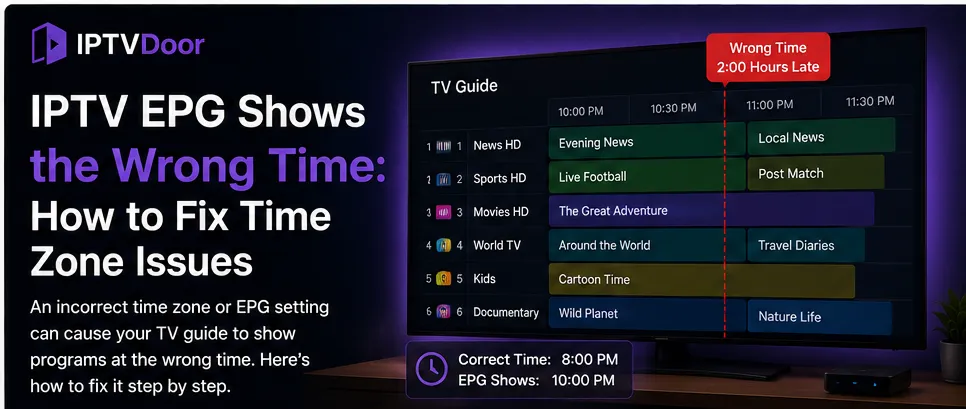
An IPTV Electronic Program Guide (EPG) is supposed to make live television easier to navigate by showing what is currently playing and what is coming next. But sometimes the programs appear one, two, or even several hours earlier or later than they should.
If your IPTV EPG shows the wrong time while the channels themselves work normally, the problem is often related to time-zone configuration rather than the IPTV stream itself.
Your device, IPTV player, EPG data, or provider can all influence how program times are displayed.
This guide explains why an IPTV EPG may show the wrong time and what you can check to correct it.
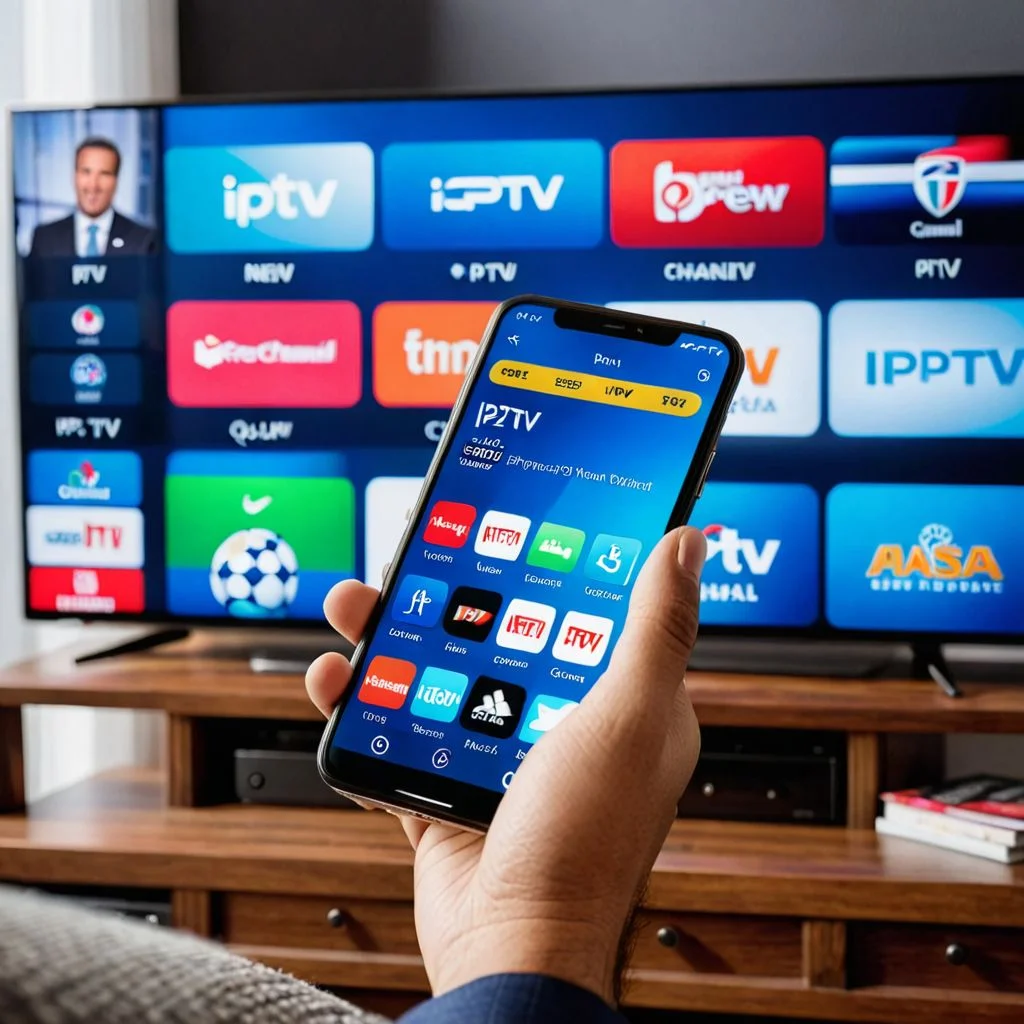
IPTV Electronic Program Guide EPG Interface with Time Zone DisplayWhat Is an IPTV EPG?
EPG stands for Electronic Program Guide.
It is the digital TV guide that displays information such as:
- Current programs
- Upcoming programs
- Program start and end times
- Channel names
- Program descriptions
- Movies and sports schedules
- Catch-up or replay information when supported
EPG information is usually supplied by the IPTV provider through an XMLTV feed or another compatible guide format.
The EPG does not control the actual stream. It provides scheduling information that the IPTV player displays alongside the channel list.
This distinction is important because an incorrect EPG time does not necessarily mean that the IPTV channel itself is broken. If you encounter broader streaming issues where channels load but won't play or experience an IPTV black screen with working audio, those involve player playback decoders rather than guide data.
Why Is My IPTV EPG Showing the Wrong Time?
There are several possible causes.
The most common include:
- The device has the wrong time zone.
- The IPTV player has an incorrect time-zone setting.
- The EPG data uses a different time zone.
- Daylight Saving Time is being handled incorrectly.
- The EPG data is outdated.
- The provider's EPG source contains incorrect time information.
- The device is using manual time settings.
- The EPG has not been refreshed after a configuration change.
The best solution depends on where the time difference originates.
1. Check Your Device's Time Zone
Start with the simplest possible cause: the device itself.
If your Smart TV, Fire TV device, Android TV box, phone, or computer has the wrong time zone, some IPTV applications may display EPG information incorrectly.
Open your device's date and time settings.
Look for options such as:
- Automatic date and time
- Automatic time zone
- Time zone
- Network-provided time
- Daylight Saving Time
Whenever possible, enable automatic time and automatic time-zone detection.
Then restart your IPTV application and check the EPG again.
Why This Matters
For example, if your device is physically located in New York but its time zone is configured for Los Angeles, the displayed program schedule may be several hours different from your local time.
Correcting the device time zone is therefore the first troubleshooting step. If you need help locating system settings on specific hardware, visit our device setup guides.
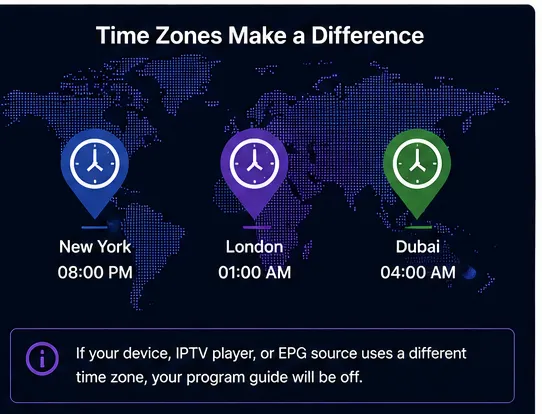 Smart TV and Android TV Box Device Time Zone Settings
2. Check the IPTV Player's Time-Zone Settings
Some IPTV players have their own time-zone configuration.
This means your device can show the correct local time while the IPTV application is configured to use a different time zone.
Open the IPTV player's settings and look for options such as:
- Time Zone
- EPG Time Shift
- Guide Time
- XMLTV Time Zone
- EPG Offset
- Automatic Time Zone
If the player allows you to select a time zone, choose the one that matches your actual location.
After changing the setting, refresh the EPG.
3. Refresh the EPG Data
Sometimes the time-zone setting is correct, but the player is still displaying old EPG information.
Most IPTV applications provide an option to refresh or update the guide.
Look for:
- Refresh EPG
- Update EPG
- Reload Guide
- Clear EPG Cache
- Update TV Guide
Run the refresh and wait for the guide to finish loading.
Large EPG databases can take some time to process, especially when they contain thousands of channels.
After the update completes, check several channels rather than only one.
4. Check the EPG Time Offset
Some IPTV players allow users to manually shift EPG times.
This is commonly called an EPG offset or time shift.
For example, if every program appears exactly two hours late, an offset may have been configured incorrectly.
Before changing the offset, confirm that the device and application time zones are correct.
If the entire EPG is consistently shifted by the same amount, the offset may help correct the display.
However, do not randomly adjust the offset.
A manual correction can make the guide appear correct temporarily while creating another problem when the provider changes its EPG data or when Daylight Saving Time begins or ends.
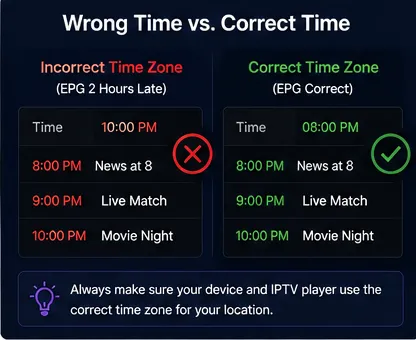 EPG Time Shift and Hour Offset Comparison
5. Daylight Saving Time Can Cause a One-Hour Difference
Daylight Saving Time is another common reason for an EPG to suddenly appear one hour early or late.
Some regions change their clocks during part of the year, while others do not.
If your EPG was correct previously and suddenly becomes exactly one hour wrong around a seasonal clock change, check your device's automatic time-zone and daylight-saving settings.
Using automatic time and time-zone settings can reduce the chance of manually configured clock changes causing problems.
6. The EPG Data May Use UTC
Many electronic program guides use UTC-based timestamps.
Your IPTV player then converts those timestamps into the local time displayed on your device.
For example:
UTC: 18:00
A viewer in another time zone may see:
Local time: 13:00
Another viewer may see:
Local time: 20:00
The underlying EPG data can therefore be correct even when the displayed time differs between locations.
The important part is whether the IPTV player is correctly converting the EPG data into your local time.
7. Check Whether Every Channel Has the Same Time Difference
This is an important troubleshooting test.
Open several channels and compare their EPG schedules.
If every channel is exactly two hours wrong, the problem is more likely to be a time-zone or offset configuration.
If only a few channels show incorrect times, the problem may be related to the EPG data for those particular channels.
For example:
| EPG Behavior | Possible Cause |
|---|---|
| Every channel is 2 hours late | Time-zone or offset issue |
| Every channel is 1 hour early | DST or time-zone issue |
| Only a few channels are wrong | EPG source/data issue |
| EPG is completely empty | EPG URL or loading issue |
| Times change after refresh | EPG synchronization issue |
This simple comparison can save a lot of troubleshooting time.
8. Check the EPG Source
If your IPTV setup uses a separate EPG URL, verify that the correct source is configured.
An incorrect or outdated EPG source can produce:
- Missing programs
- Incorrect schedules
- Wrong channel mappings
- Outdated program information
- Incorrect program times
If your provider supplies an EPG URL, use the current URL they provide.
Do not assume that an old EPG URL will remain correct indefinitely.
9. Clear the IPTV Player's EPG Cache
An IPTV application may store EPG information locally.
If the cached guide becomes outdated or corrupted, refreshing the EPG may not always be enough.
If your player provides an option to clear the EPG cache, use it and then perform a fresh EPG update.
The exact steps depend on the IPTV application.
After clearing the cache:
- Restart the application.
- Reload the playlist if necessary.
- Refresh the EPG.
- Wait for the guide to finish updating.
- Compare several channels.
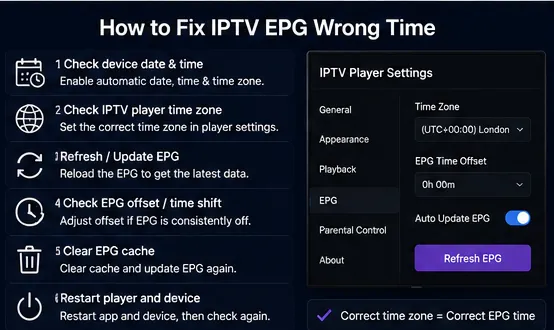 Clearing IPTV Player EPG Cache and Refreshing Guide
10. Check Your Device Clock
Do not only check the time zone.
Check the actual clock displayed by your device.
If the device itself shows an incorrect time, IPTV applications may also display incorrect scheduling information.
Enable automatic date and time if the device supports it.
This is especially important on:
- Android TV boxes
- Fire TV devices
- Smart TVs
- Older streaming devices
A correct local clock provides a reliable reference for applications that convert EPG timestamps.
11. Test the Same Playlist on Another Device
If you have another compatible device, test the same IPTV playlist there.
For example:
Device A: EPG is 2 hours wrong.
Device B: EPG is correct.
This strongly suggests that the problem is related to the first device or its IPTV player settings.
If both devices display exactly the same incorrect times, the issue may be related to the EPG data or provider configuration.
Testing another device is therefore one of the fastest ways to isolate the problem.
12. Check Whether the Channel Itself Has the Correct Schedule
Sometimes the EPG is blamed when the problem is actually incorrect guide data.
Compare the program shown by the EPG with another reliable schedule source for the same channel.
If the external schedule and actual broadcast agree but the IPTV EPG is wrong, the guide data may be outdated or incorrectly mapped.
This is especially important for:
- Sports events
- Live news
- Special broadcasts
- Holiday programming
- Channels that frequently change schedules
Live events can also change at short notice, so occasional discrepancies do not necessarily indicate a technical problem.
13. What If the EPG Is Correct but Catch-Up Times Are Wrong?
Some IPTV platforms provide catch-up or replay functionality.
The EPG and catch-up system may rely on different pieces of metadata.
Therefore, you can occasionally encounter a situation where:
- The EPG displays the correct program time.
- The catch-up timeline appears shifted.
If this happens, check whether the issue occurs with all channels or only specific channels.
If only certain channels are affected, the problem may be related to the provider's catch-up metadata rather than your device's clock.
14. When Should You Contact Your IPTV Provider?
Contact the provider if you have already confirmed:
- Your device time is correct.
- Your time zone is correct.
- Your IPTV player settings are correct.
- The EPG has been refreshed.
- The issue occurs on multiple devices.
- The same channels consistently display incorrect schedules.
When contacting support, provide useful details. If you have active service questions about your IPTV subscription, reach out to our team via contact support.
Tell them:
- Your country/time zone
- IPTV player
- Device model
- Affected channels
- How many hours the EPG is shifted
- Whether every channel is affected
- Whether refreshing the EPG changed anything
This information makes it easier to determine whether the problem is related to the EPG source.
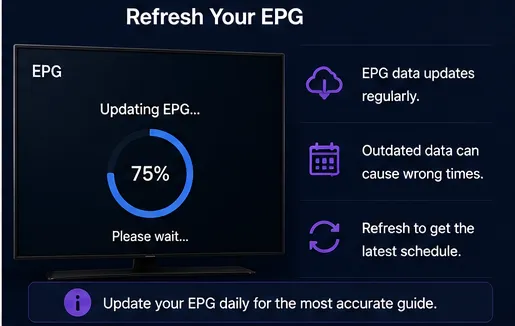 IPTV EPG Wrong Time Troubleshooting Fix Checklist
Quick IPTV EPG Time-Zone Fix Checklist
Before contacting support, try these steps in order:
- Check the device clock.
- Enable automatic date and time.
- Enable automatic time zone.
- Check the IPTV player's time-zone setting.
- Check the EPG offset/time-shift setting.
- Refresh the EPG.
- Clear the EPG cache if available.
- Restart the IPTV application.
- Test several different channels.
- Test the same playlist on another device.
- Check whether the problem is exactly one hour, two hours, or another fixed difference.
- Contact your provider if the issue persists.
Frequently Asked Questions
Final Thoughts
An IPTV EPG showing the wrong time can be frustrating, especially when the actual channels are working correctly.
In most cases, the first things to check are your device's clock, time zone, IPTV player's time-zone settings, and EPG offset. If you also notice evening streaming freezes, check our guide on IPTV buffering only at night.
After that, refresh the EPG and compare several channels.
If every channel has the same time difference, configuration is a strong possibility. If only certain channels are affected, the EPG data itself may be responsible.
The most important rule is simple: check the time zone before changing complicated IPTV settings.
 IPTV Program Guide Clock Synchronization Visual