What Internet Speed Do You Need for IPTV in 2026? Complete Speed Guide
Streaming live television over the internet delivers instant access to global channels, live sports, and on-demand movies. When playback stutters, viewers immediately ask: what internet speed do you need for IPTV, and why can a 100 Mbps or 500 Mbps connection still buffer?
Having adequate download bandwidth is essential, but stream stability, low latency, zero packet loss, and proper router settings keep feeds playing smoothly.
This 2026 guide covers practical internet speed for IPTV across SD, HD, Full HD, and 4K. We analyze bandwidth for IPTV multiple devices, resolve IPTV buffering internet speed problems, compare an IPTV Ethernet connection with IPTV WiFi speed, and optimize your setup without paying for a costlier broadband tier.
Internet speed for IPTV streaming quality requirements comparison infographicQuick Answer: How Much Internet Speed Does IPTV Need?
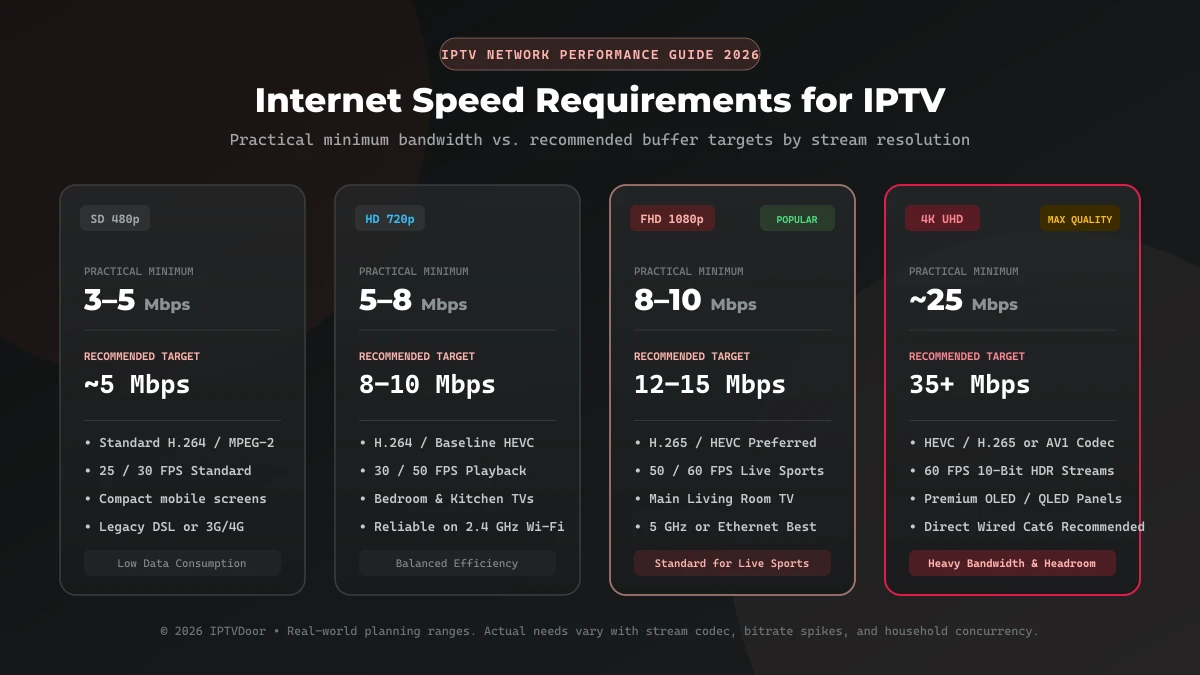
The minimum and recommended download speeds for a single active IPTV stream depend on resolution and frame rate:
| Streaming Quality | Practical Minimum | Recommended Target | Common Resolution & Frame Rate |
|---|---|---|---|
| SD (Standard Definition) | ~3–5 Mbps | ~5 Mbps | 480p / 576p @ 25–30 FPS |
| HD (High Definition) | ~5–8 Mbps | ~8–10 Mbps | 720p @ 30–50 FPS |
| Full HD (1080p) | ~8–10 Mbps | ~12–15 Mbps | 1080p @ 50–60 FPS |
| 4K UHD (Ultra High Definition) | ~25 Mbps | ~35+ Mbps | 2160p @ 50–60 FPS HDR |
These values are practical planning targets. Demands fluctuate based on video codecs (HEVC vs H.264), sports frame rates (50/60 FPS), and concurrent household traffic. Targeting recommended speeds ensures reliable buffer headroom.
Internet Speed Requirements by IPTV Quality
Understanding resolution demands helps you select the best internet speed for IPTV on your screens.
SD IPTV (Standard Definition - 480p / 576p)
Standard Definition (480p/576p) requires 3 to 5 Mbps. Low pixel density and 25/30 FPS rates keep bitrates under 2.5 Mbps, making SD ideal for mobile screens, tablets, and cellular data.
HD IPTV (High Definition - 720p)
High Definition 720p demands 5 to 8 Mbps minimum, with 8 to 10 Mbps recommended for steady IPTV HD internet speed. Extra headroom absorbs speed dips when other home devices sync data.
Full HD IPTV (1080p)
Full HD 1080p requires 8 to 10 Mbps minimum, with 12 to 15 Mbps recommended for optimal IPTV Full HD internet speed. Live 50/60 FPS sports create rapid camera pans that cause bitrate spikes up to 14 Mbps.
4K IPTV (2160p Ultra HD)
4K Ultra HD demands 25 Mbps baseline, with 35+ Mbps strongly recommended for sustained IPTV 4K streaming speed. Live 4K 60 FPS sports via HEVC demand 30 to 40 Mbps alongside capable hardware decoders.
Is Internet Speed the Same as Streaming Stability?
A high Mbps broadband package does not guarantee seamless playback:
A high download speed number does not automatically mean a stable IPTV stream.
Bandwidth and stability measure two different network characteristics:
- Bandwidth (Speed in Mbps): The volume of data carried per second—like pipe width.
- Stability (Latency, Jitter, Packet Loss): The continuous arrival of packets—like steady water pressure.
Because live IPTV operates with narrow buffer windows (3 to 8 seconds), packet loss, high jitter, Wi-Fi interference, router bufferbloat, and ISP peering bottlenecks interrupt playback. A stable 30 Mbps fiber connection with zero packet loss consistently outperforms an unstable 500 Mbps connection over congested Wi-Fi.
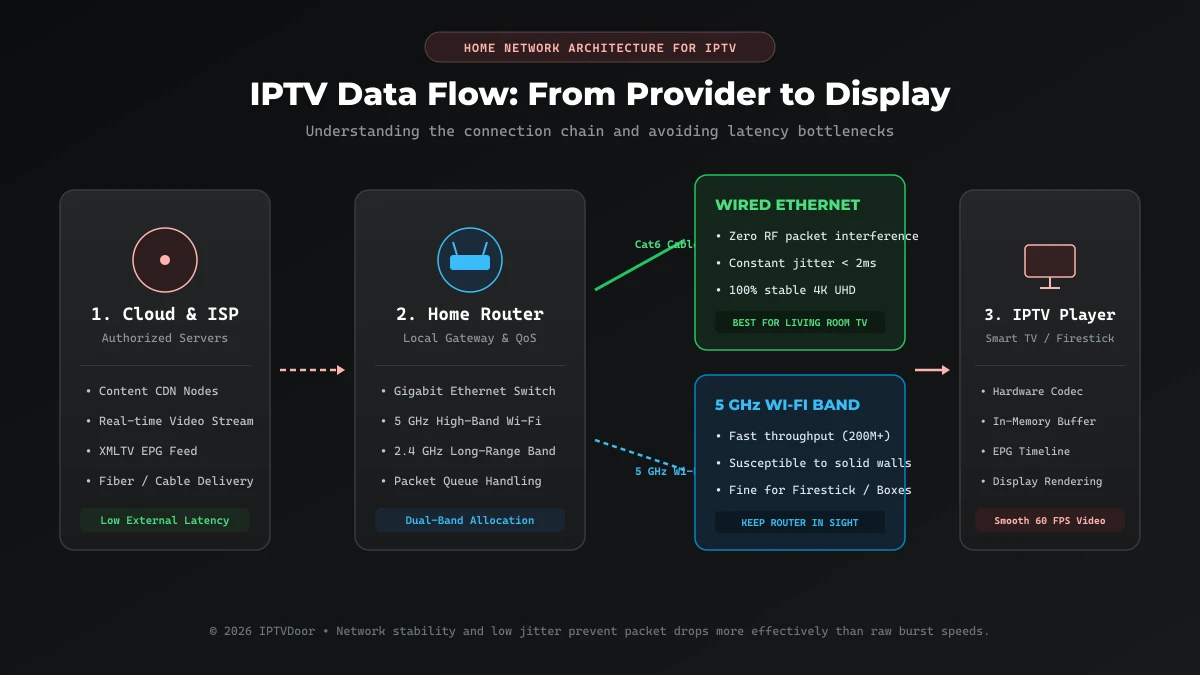 Home network setup diagram for stable IPTV streaming with router and TV connections
How Much Speed Do You Need for Multiple IPTV Devices?
Broadband bandwidth is shared across your home. To plan your IPTV speed requirements, consider these typical setups:
- One HD TV: Uses 8 to 12 Mbps. A 15 to 25 Mbps connection provides comfortable headroom.
- One 4K TV: Demands 25 to 35 Mbps. A plan of 50 Mbps or higher ensures buffer-free viewing.
- Two Full HD Devices: Demands 20 to 25 Mbps dedicated video bandwidth. Target at least 40 to 50 Mbps.
- Two 4K Devices: Consumes 50 to 70 Mbps. Target 100 Mbps or higher.
Use this planning formula:
$$\text{Practical Target} = (\text{Total Streams} \times \text{Per-Stream Target}) + \text{Household Baseline} + 30% \text{ Margin}$$
Example: Two Full HD streams ($24\text{ Mbps}$) plus family browsing ($20\text{ Mbps}$) with a 30% margin ($13\text{ Mbps}$) yields a target of 60 to 75 Mbps.
Why IPTV Can Buffer Even With 100 Mbps or More
Experiencing IPTV buffering internet speed problems on 100 Mbps or 1 Gbps broadband is common. Internal bottlenecks are typically responsible:
- Weak Wi-Fi Signal: Distance and wall attenuation reduce signal strength.
- Channel Congestion: Overlapping Wi-Fi channels cause packet collisions.
- Router Memory Exhaustion: Long operating uptime leads to NAT table saturation.
- Device Overload: Smart gadgets overwhelm entry-level routers.
- Transit Packet Loss: Peering bottlenecks between ISP and CDNs cause packet drops.
- ISP Evening Throttling: Providers deprioritize video traffic during prime time. See our guide on IPTV buffering only at night.
- Server Surges: Massive sports events can strain specific delivery nodes.
- App Cache Bloat: Accumulated guide chunks degrade player performance.
- Software Decoding: Player apps using CPU decoding instead of GPU acceleration stutter.
- Upload Saturation: Saturated home upload channels choke outgoing stream acknowledgments.
[IPTVDOOR_OFFER_CARD]
Wi-Fi vs Ethernet for IPTV
The physical connection between your player and router dictates stream stability:
| Connection Medium | Advantages | Limitations | Stability | Best Use Case |
|---|---|---|---|---|
| Wired Ethernet (Cat6) | Zero radio interference, low jitter (<2 ms), maximum reliability | Requires routing physical cable | 5 / 5 | Primary Smart TVs, 4K streaming boxes, live sports |
| 5 GHz Wi-Fi | High throughput (200–600+ Mbps), low congestion | Shorter range, degraded by thick walls | 4 / 5 | Streaming devices in same or adjacent room |
| 2.4 GHz Wi-Fi | Long range, passes through solid brick | Slower speeds (25–50 Mbps), high interference | 2.5 / 5 | Distant secondary TVs streaming SD or 720p |
For stationary hardware like living room Smart TVs, an IPTV Ethernet connection provides the most consistent delivery, eliminating packet drops and frequency clashing.
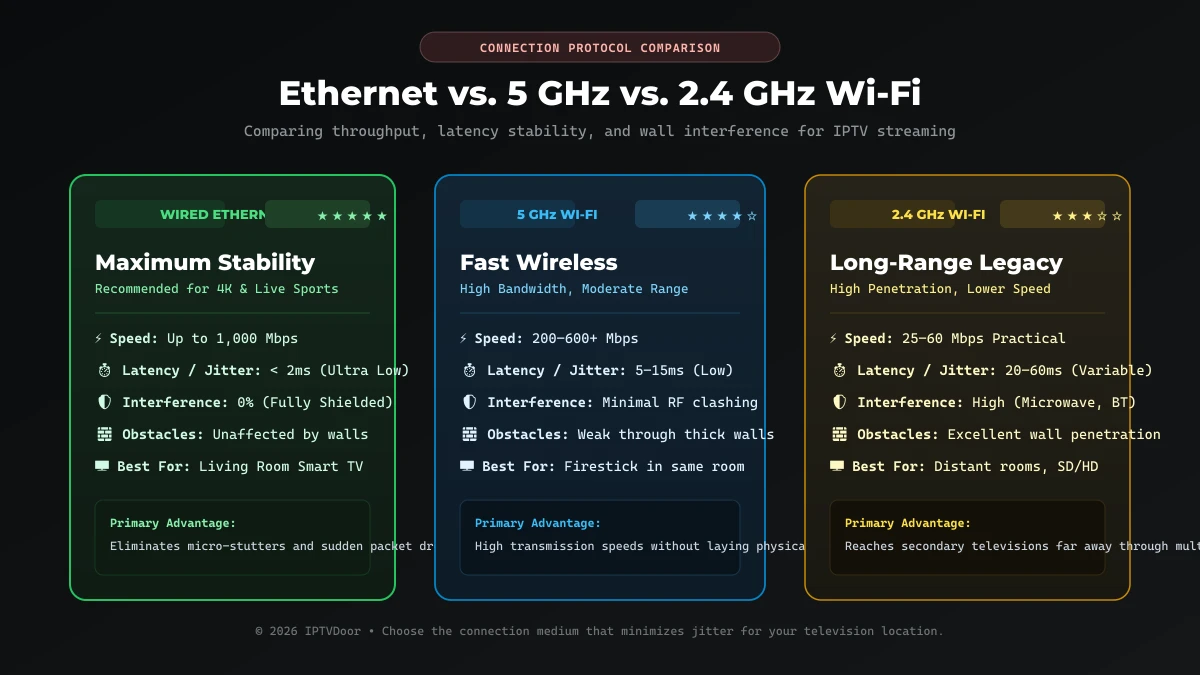 Comparison of 2.4 GHz Wi-Fi, 5 GHz Wi-Fi, and Ethernet connection for IPTV streaming stability
2.4 GHz vs 5 GHz Wi-Fi for IPTV
When running an Ethernet cable is impractical, optimizing IPTV WiFi speed across bands is critical:
- The 2.4 GHz Band: Penetrates solid walls effectively, but has only 3 non-overlapping channels. Heavy interference from microwaves and Bluetooth makes it prone to micro-stutters on 1080p sports. Use it only in distant rooms where 5 GHz cannot reach.
- The 5 GHz Band: Carries massive data volumes with minimal latency. Within line-of-sight or through drywall, it delivers 200 to 500 Mbps of low-jitter throughput for 4K streams.
- Recommendation: Separate router SSIDs into
Home_2.4GandHome_5G. Connect your TV exclusively toHome_5G.
How to Test Your Internet Speed for IPTV
Accurate speed testing requires benchmarking on the actual TV or streaming player, not on a phone near the router:
- Test on TV Hardware: Open the TV's browser or install a speed test app on your streaming device.
- Test the Active Medium: Confirm the test runs over the exact connection (5 GHz Wi-Fi or Ethernet) used for streaming.
- Benchmark at Peak Hours: Test between 8:00 PM and 11:00 PM when neighborhood traffic peaks.
- Evaluate 3 Metrics: Verify download speed (15 Mbps FHD, 35+ Mbps 4K), ping (under 30 ms), and jitter (under 5 ms).
- Cross-Check Devices: If your phone gets 150 Mbps next to the TV but the TV gets 15 Mbps, the TV's antenna is the bottleneck.
What Download Speed Matters for IPTV?
Broadband connections feature two headline numbers: download speed and upload speed (e.g., 100 Mbps down / 10 Mbps up).
- Download Bandwidth Is Vital: IPTV is downstream media. Video feeds, audio tracks, and EPG schedules flow from CDN servers to your TV. Downstream throughput directly governs continuity.
- Upload Bandwidth Role: IPTV uses under 0.1 Mbps upload speed for stream acknowledgments (ACK). However, if cloud backups saturate upload capacity, outgoing ACK packets get delayed, causing the server to throttle video delivery. Maintaining 5 to 10 Mbps upload headroom prevents buffering.
Does Internet Speed Affect IPTV Picture Quality?
Increasing your broadband package does not magically convert standard feeds into 4K:
Increasing your internet speed does not alter the native broadcast resolution or bitrate of a stream.
Picture quality depends on source broadcast capture, provider compression codecs, and TV scaler chips. Some IPTV streams use adaptive bitrate streaming (ABR) that steps down resolution when speed drops below 5 Mbps. Sufficient speed guarantees you receive the highest available profile without downscaling, but cannot exceed original broadcast limits. Learn more in our guide on IPTV channels load but won't play.
What Internet Speed Is Best for IPTV Sports?
Live sports are the most demanding streaming category due to distinct technical factors:
- 50 & 60 FPS Streams: Twice the frame rate of regular TV keeps fast-moving action fluid, requiring higher continuous bitrates.
- Dynamic Bitrate Spikes: Stadium pans across thousands of fans cannot compress tightly, causing sharp bitrate spikes.
- Low-Latency Requirements: Sports streams operate with small buffer margins to avoid match spoilers.
Recommended sports speeds: at least 10 Mbps for 720p, 15 to 20 Mbps for Full HD 60 FPS, and 35 to 50 Mbps for 4K UHD. For setup advice, see our guide on how to watch live sports with IPTV.
What Internet Speed Do You Need for IPTV on Firestick?
Amazon Fire TV Sticks (Lite, 4K, and 4K Max) are popular streaming devices with specific considerations:
- Recommended Bandwidth: 15 to 20 Mbps for Full HD; 35+ Mbps for Firestick 4K streaming Ultra HD.
- TV Chassis Interference: Metal TV chassis plates shield incoming Wi-Fi signals. Always use the included HDMI extender to position the Firestick away from the TV body for better reception.
- Ethernet Adapters: If Wi-Fi buffers, an inexpensive USB Ethernet adapter provides wired stability.
- App Management: Periodically force-stop unused background apps and clear cache. For configuration steps, check our IPTVDoor installation guide.
What Internet Speed Do You Need for IPTV on Smart TV?
Samsung Tizen, LG webOS, and Android TV / Google TV devices offer built-in convenience:
- Recommended Bandwidth: 15 to 25 Mbps for Full HD; 35 to 50 Mbps for 4K.
- 100 Mbps Ethernet Ports: Most Smart TVs feature 100 Mbps Fast Ethernet rather than Gigabit ports. This is completely normal and more than double what 4K IPTV requires.
- Direct Testing: Test on fast.com via the TV browser to ensure internal Wi-Fi antennas receive adequate signal.
- Player Optimization: Apps like SmartOne IPTV, IBO Player Pro, and TiviMate let you adjust buffer sizes to smooth fluctuations. Explore top apps in our best IPTV players for Smart TV in 2026 guide.
How to Improve IPTV Streaming Without Upgrading Your Internet Plan
Before paying for a costlier broadband tier, apply these 12 optimizations:
- Elevate Router: Position your router in an open, central spot off the floor.
- Switch to 5 GHz: Move streaming devices to 5 GHz to escape 2.4 GHz congestion.
- Use Ethernet: Direct wired connections eliminate most buffering problems.
- Separate SSIDs: Lock your streaming device to the 5 GHz band.
- Enable QoS: Prioritize your Smart TV's MAC address in router traffic settings.
- Pause Heavy Transfers: Suspend torrents and cloud backups while watching TV.
- Update DNS: Switch sluggish ISP DNS to Cloudflare (
1.1.1.1) or Google (8.8.8.8). - Clear App Cache: Free up player memory in TV settings.
- Enable Hardware Acceleration: Set video decoder to Hardware (HW). If video is black with audio playing, consult IPTV black screen but audio works.
- Increase Buffer: Set buffer size to 5–10 seconds in player settings.
- Reboot Weekly: Power cycle modem and router weekly to clear NAT memory leaks.
- Isolate Feed Issues: Test 5 channels. If all stutter, check your connection; if only one buffers, the issue is the server feed. For frequent dropouts, read IPTV keeps disconnecting: why it happens and how to fix it.
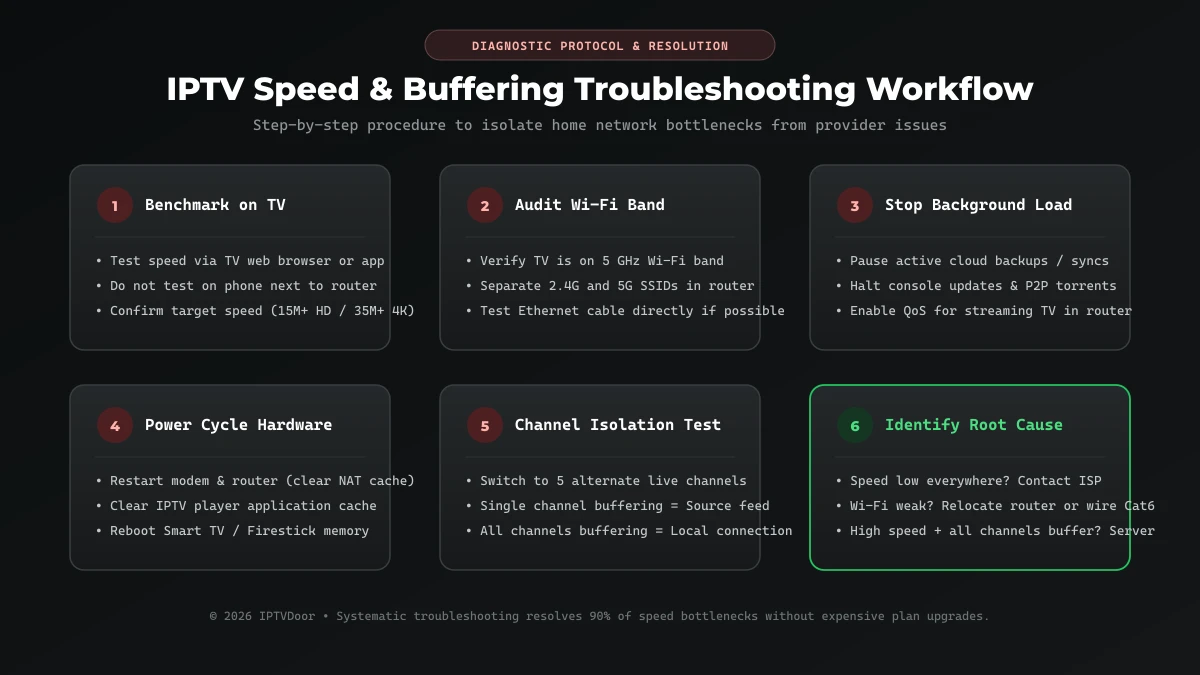 IPTV internet speed troubleshooting step-by-step diagnostic workflow
Do You Need to Upgrade Your Internet for IPTV?
Use this decision guide to evaluate your current broadband plan:
- If You Have 10 Mbps: Supports a single SD or 720p stream with minimal household use. 1080p sports and 4K will buffer. Upgrading to 25–50 Mbps provides an immediate stability boost.
- If You Have 25 Mbps: Sufficient for one Full HD 1080p stream with headroom, or two 720p streams. Upgrade to 50+ Mbps when adopting 4K.
- If You Have 50 Mbps: The sweet spot for most households, supporting one 4K stream or three Full HD streams. Upgrading beyond 50 Mbps is rarely needed for IPTV alone.
- If You Have 100 Mbps: Ample bandwidth for families running multiple simultaneous 4K and FHD streams.
- If You Have 500 Mbps or 1 Gbps: Capacity exceeds IPTV needs by 10x. Buffering is caused by Wi-Fi jitter, router bufferbloat, or server load. Do not upgrade.
Recommended Internet Speed by Household
This table summarizes broadband targets and connection types by household size:
| Household Situation | Active Streams & Usage | Practical Broadband Target | Recommended Connection Type | Buffer Headroom |
|---|---|---|---|---|
| Solo Viewer (Basic) | 1 TV, primarily HD (720p / 1080p) + phone | 15–25 Mbps | 5 GHz Wi-Fi or Ethernet | Medium |
| Solo Viewer (4K Sports) | 1 Living Room TV, dedicated 4K UHD | 35–50 Mbps | Direct Cat6 Ethernet Cable | High |
| Couple Household | 2 TVs streaming Full HD simultaneously + laptops | 30–50 Mbps | Ethernet for main TV, 5G Wi-Fi for second | Medium |
| Family Household (Standard) | 2–3 TVs (mix of FHD & HD) + phones + gaming | 50–75 Mbps | Wired Ethernet for primary living room TV | High |
| Power Household (Multi-Screen 4K) | 3+ TVs including multiple 4K streams + heavy downloads | 100+ Mbps | Cat6 Ethernet or Wi-Fi 6 Mesh System | Maximum |
Note: Practical targets designed to balance smooth streaming with everyday household multitasking.
IPTV Internet Speed Checklist
Review this pre-stream checklist before watching major live events:
- Benchmark Speed on TV: Test throughput on the TV browser to verify target speeds.
- Check Wi-Fi Signal: Ensure wireless signal is at least -65 dBm or connect Cat6 Ethernet.
- Connect to 5 GHz Network: Ensure the streaming device is on 5 GHz Wi-Fi rather than congested 2.4 GHz.
- Pause Heavy Downloads: Suspend game updates, torrent clients, and cloud backups.
- Audit Other Screens: Check if other family members are running 4K streams.
- Set Player Buffer to Large: Configure 5–10 seconds of buffer memory in player settings.
- Enable Hardware Acceleration: Verify the player is using hardware (HW/HW+) decoding.
- Reboot Router Periodically: Power cycle modem and router weekly to clear NAT memory leaks.
- Test Multiple Channels: Verify whether buffering is channel-specific or network-wide.
- Upgrade Selectively: Only upgrade broadband if verified speed tests consistently fall below 15 Mbps.
[IPTVDOOR_OFFER_CARD]
Frequently Asked Questions
Conclusion
Determining what internet speed do you need for IPTV in 2026 comes down to balancing raw download capacity with continuous network stability. While a baseline of 15 Mbps handles Full HD and 35 Mbps accommodates 4K Ultra HD, low jitter, zero packet loss, and minimal wireless interference are what truly keep channels playing without interruption.
Testing speed directly on your streaming hardware, connecting via wired Ethernet or 5 GHz Wi-Fi, separating wireless bands, and configuring player buffer settings eliminates buffering and delivers crisp high-definition entertainment across your home.
To explore dependable live TV options tailored for your entertainment setup, browse our flexible IPTVDoor pricing plans today, explore our extensive IPTV channel lineups, or consult our comprehensive IPTVDoor installation guide for step-by-step setup walkthroughs on all compatible devices. For additional answers to common streaming inquiries, visit our frequently asked questions, or reach out directly to the IPTVDoor support team whenever you need assistance.