IPTV Not Loading: Why Channels Won't Load and How to Fix It
You sit down to watch a highly anticipated match or a new movie, you launch your IPTV application, and... nothing happens.
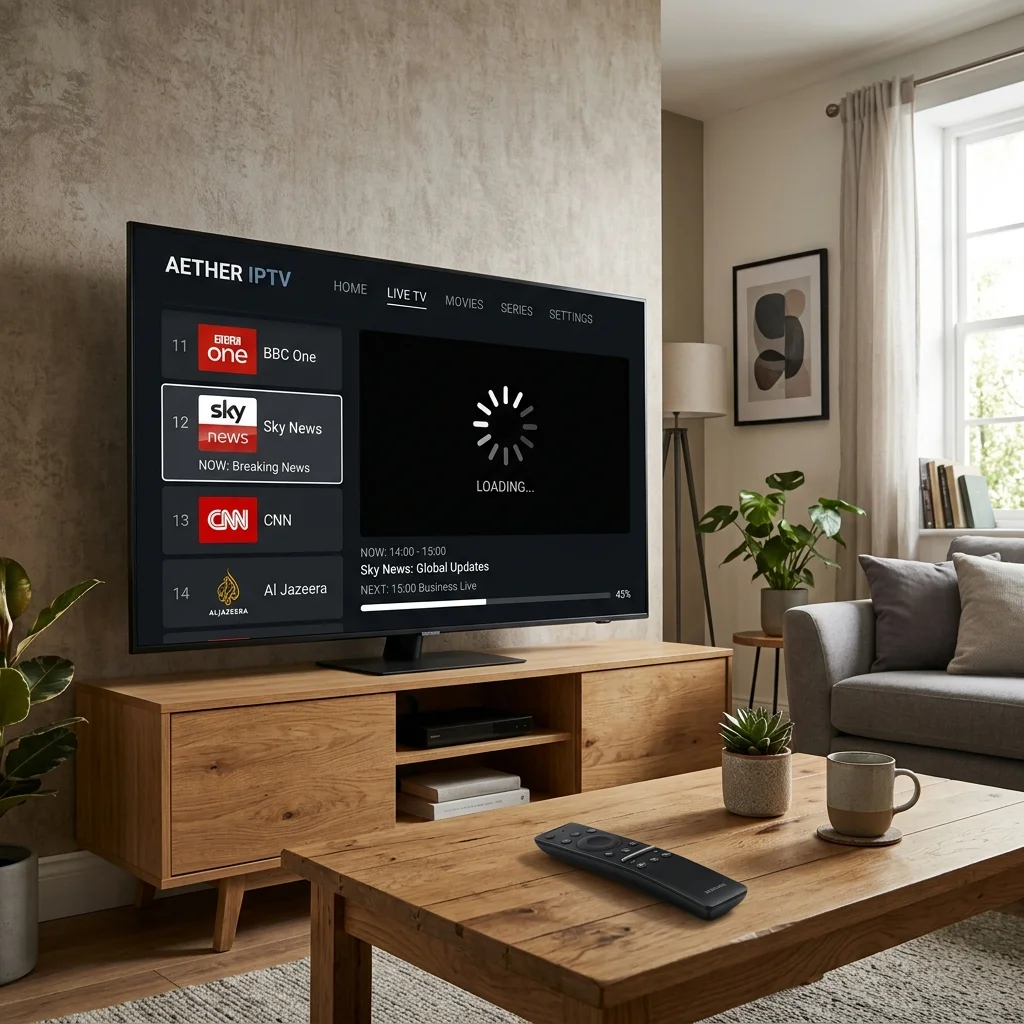
It is incredibly frustrating when an IPTV channel is stuck on a loading screen, spinning endlessly without ever starting the stream. Sometimes the playlist appears completely empty, or some channels work perfectly while others refuse to load at all.
When IPTV is not loading, the issue isn't always a poor internet connection. Channel loading problems can stem from outdated applications, corrupted playlists, device compatibility issues, router misconfigurations, or temporary service-side interruptions.
This comprehensive guide explains exactly why your IPTV channels won't load and walks you through a step-by-step troubleshooting process to fix the problem, ensuring you can quickly get back to enjoying your IPTVDoor service.
IPTV channels not loading on Smart TV[IPTVDOOR_OFFER_CARD]
IPTV Not Loading? Start With These Quick Checks
If you don't have time to read a full diagnostic guide right now, try these immediate troubleshooting steps to fix common IPTV channel loading problems:
- Check internet connection: Open a web browser or a different streaming app on the same device to verify you are online.
- Restart the IPTV player: Force close the application completely and open it again.
- Restart the device: Unplug your Smart TV, Firestick, or Android box from the power source for 30 seconds.
- Check whether other channels work: Test a channel from a completely different category or country to see if the issue is localized.
- Check IPTV account details: Verify your login credentials and ensure your subscription is active.
- Refresh or reload the playlist: Look for an "Update Playlist" or "Reload Channels" button in your app settings.
- Check EPG: If the TV guide is wrong, read our guide on How to Fix IPTV EPG Time Shift.
- Test another compatible device/player: Log into your account on a different device to isolate the issue.
Why Are My IPTV Channels Not Loading?
To fix an IPTV stream that has failed to load, you first need to understand the potential causes. An IPTV connection relies on a delicate chain between your device and the provider's server. A break anywhere in this chain will prevent channels from loading.
Internet connection problems
Even if your device says it is "connected" to Wi-Fi, the connection might be experiencing packet loss or high latency, which prevents a continuous video stream from starting.
Weak or unstable Wi-Fi
Streaming live television requires a stable, continuous flow of data. A weak wireless signal, interference from other devices, or physical distance from the router can cause a channel to get stuck on the loading screen.
IPTV player issue
The software you use to watch IPTV might be glitched, overloaded with a massive playlist cache, or struggling to decode the specific video format of the channel.
Outdated application
Using an old, unsupported version of an IPTV application can lead to broken playback protocols and missing security certificates, resulting in streams that fail to load.
Incorrect login credentials
If your username, password, or playlist URL contains even a single typo (like a trailing space or a wrong capital letter), the server will refuse the connection, leaving your playlist empty or unplayable.
Playlist configuration problem
Sometimes the playlist format itself (such as M3U or Xtream Codes API) might be entered incorrectly in the app's configuration menu.
Expired or unavailable playlist
If your subscription has expired, or if your provider has updated their server URL without you knowing, the channels will simply refuse to load.
Device compatibility issue
Older Smart TVs or underpowered streaming sticks may lack the processing power or correct hardware decoders required to process high-resolution HEVC or 4K streams.
Channel-specific stream problem
If a single channel is offline at the source, your app will continuously try to load it without success.
EPG/configuration issue
A corrupted electronic program guide database on your device can sometimes crash the app before it even attempts to load the video stream.
Temporary service-side problem
The IPTV server infrastructure may be undergoing emergency maintenance, experiencing a DDoS attack, or suffering a temporary hardware outage.
Network congestion
During peak evening hours or major sporting events, your local Internet Service Provider (ISP) might be heavily congested, reducing the bandwidth available for your stream to actually start.
How to Fix IPTV Channels That Won't Load
Follow this logical step-by-step troubleshooting process to identify and resolve your IPTV loading problems.
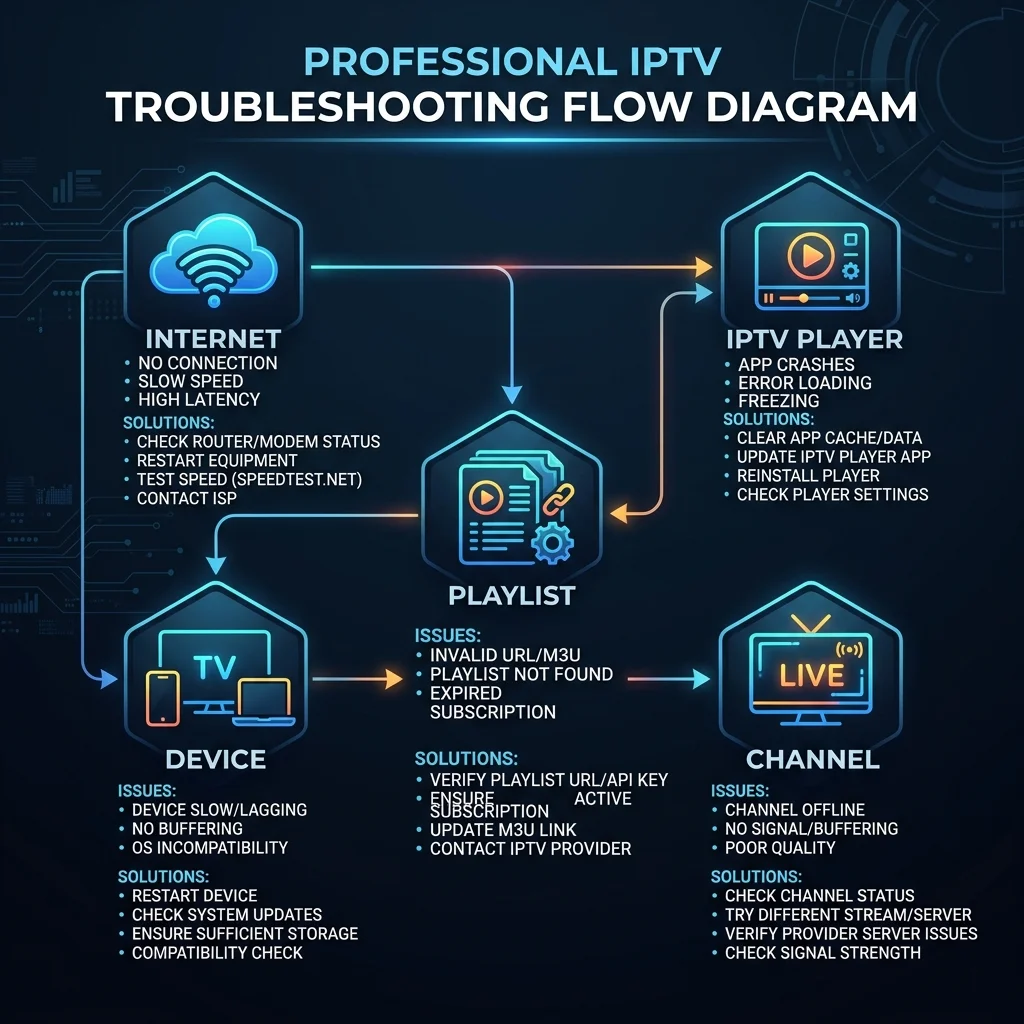 IPTV channel loading troubleshooting steps
Step 1: Check Your Internet Connection
Never assume your internet is fine just because your phone is connected to Wi-Fi. You must test the connection on the device you use for IPTV.
- Open YouTube or Netflix on the same device and play a 4K video.
- Try browsing a website on the device.
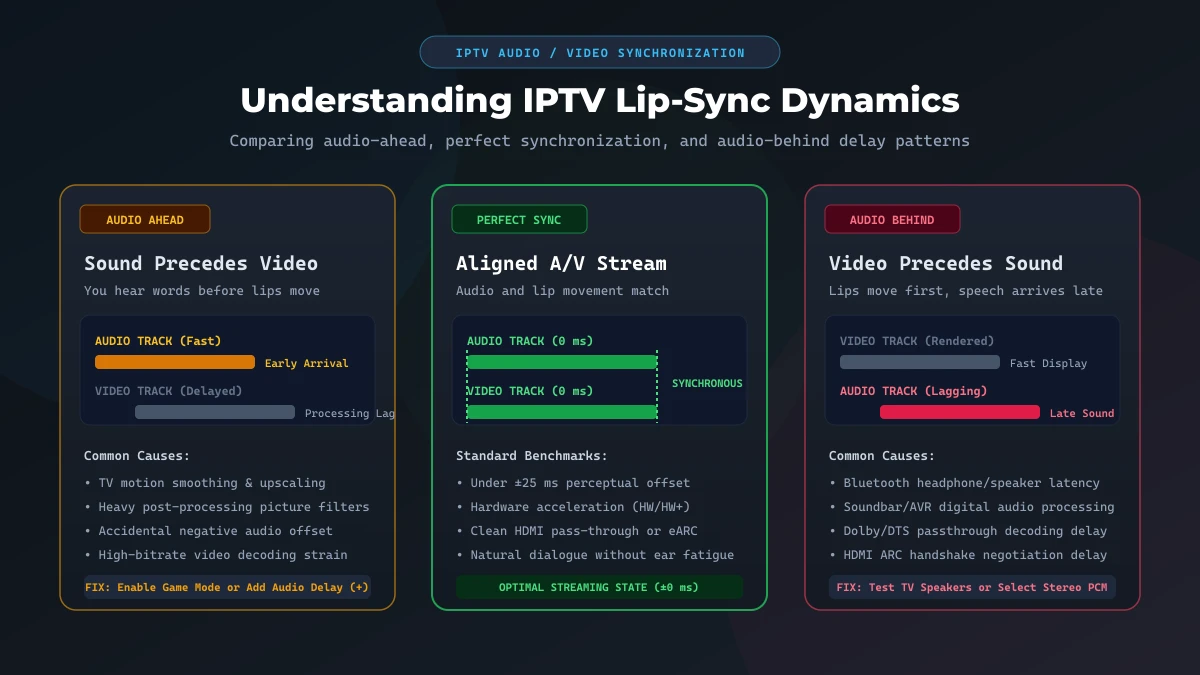
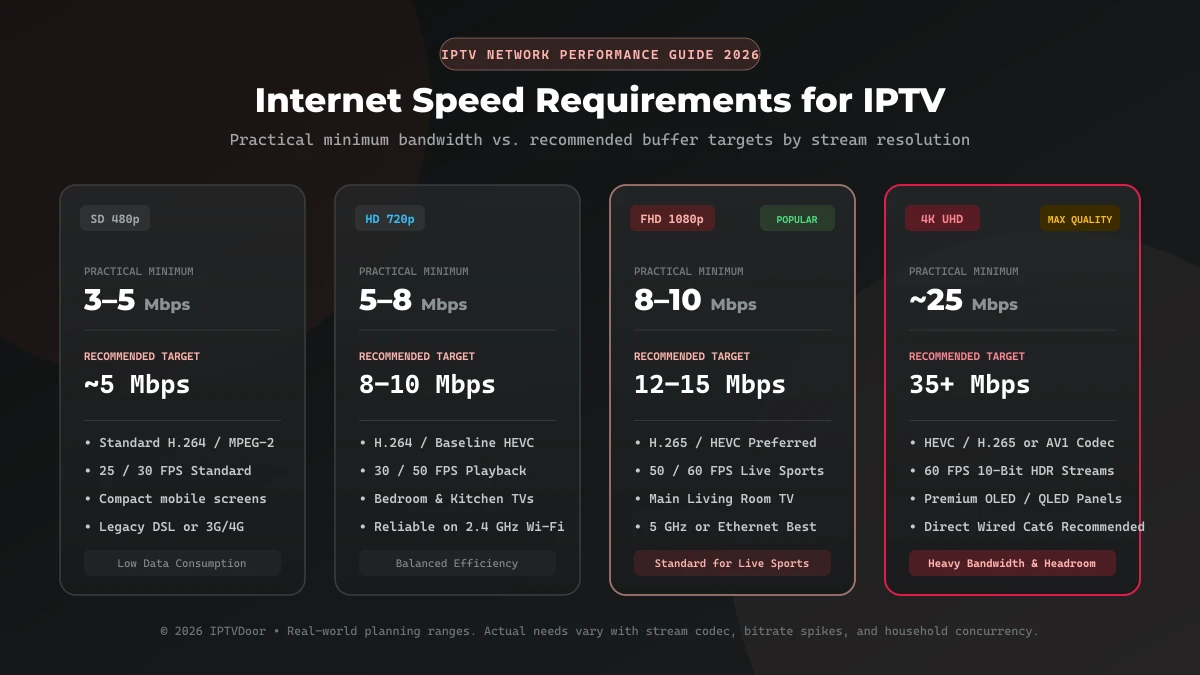
- Test your internet speed. Live IPTV requires a minimum of 15-25 Mbps for a stable HD stream, and significantly more for 4K.
An internet connection can technically be "connected" while still being too unstable to initiate a live stream.
Step 2: Test Multiple IPTV Channels
Before spending hours changing router settings, figure out the scope of the problem:
- One channel fails: The issue is almost certainly a temporary source problem with that specific broadcast.
- Several channels fail: A specific category or server cluster may be offline.
- All channels fail: The problem lies with your internet, your device, your app, or the entire IPTV service.
Step 3: Restart the IPTV Player
Applications frequently encounter memory leaks or get stuck in a bad state. Close the application completely (do not just minimize it) and reopen it. On Android devices, go to your settings and select "Force Stop," then clear the app cache before reopening it.
Step 4: Restart Your Device
A full power cycle is one of the most effective troubleshooting steps for any electronic device. Restart your:
- Smart TV
- Firestick
- Android TV
- TV box
- Mobile device
Unplug the device from the wall for 30 seconds to ensure the internal memory is completely cleared.
Step 5: Refresh the Playlist
Your IPTV player downloads a list of channel URLs from your provider. If those URLs change on the server, your local list becomes outdated, and the streams will fail to load. Look for a "Refresh Playlist," "Update Channels," or "Reload Portal" button in your app's settings menu.
Step 6: Check Your IPTV Login Details
Go into your app's settings and meticulously verify the information supplied by your IPTV service. Ensure there are no extra spaces before or after the server URL, username, or password.
Step 7: Check the IPTV Player
If your credentials are correct but the playlist won't load, check your IPTV application itself.
- Is there a pending software update?
- Does the app support the size of your playlist? (Some free apps crash when loading playlists with over 50,000 channels).
- Is the video decoder set correctly (Software vs. Hardware decoding)?
Step 8: Test Another Compatible Player
If supported by your IPTVDoor pricing plan and device, download a second, highly rated IPTV player. Test the same account credentials in this new app. If the channels load instantly in the second player, you have isolated the problem to the original application.
Step 9: Test Another Device
If possible, test the same service on another compatible device, like your smartphone. If it works on your phone using mobile data but fails on your TV, the issue is strictly related to your TV's hardware or your home network.
[IPTVDOOR_OFFER_CARD]
What If Only Some IPTV Channels Are Not Loading?
If 90% of your IPTV channels work flawlessly but a handful refuse to load, do not immediately blame your internet connection or your device hardware.
When only some channels fail, the issue is almost always a channel-specific stream problem or a temporary source issue. The original broadcast source for that particular channel might be offline, undergoing maintenance, or experiencing technical difficulties.
Alternatively, there could be incorrect channel mapping in the playlist data. In these situations, the best course of action is to wait. Providers continually monitor channel uptime and usually restore localized outages quickly.
What If All IPTV Channels Stop Loading?
If your entire playlist was working perfectly yesterday but absolutely zero channels will load today, you must perform a systematic check:
- Internet connection: Verify your device is actually online.
- Account status: Ensure your subscription hasn't expired.
- Playlist credentials: Ensure nobody changed your password.
- Playlist URL/configuration: Ensure the server URL is still active.
- IPTV player: Ensure the app hasn't corrupted its cache.
- Device: Ensure the device hasn't lost its network settings.
- Network: Ensure your ISP isn't suddenly blocking IPTV traffic.
- Service-side availability: Check if the provider is performing maintenance.
If you test your account on multiple devices and multiple networks (like a home Wi-Fi and a cellular data connection) and it fails everywhere, provider-side troubleshooting is necessary.
IPTV Playlist Not Loading: Causes and Fixes
Sometimes the channels don't even have a chance to fail because the playlist itself refuses to load into the application. If your screen says "Playlist Empty," "Failed to download playlist," or "Check URL," consider the following:
- Incorrect playlist information: A typo in the URL or login.
- Expired playlist: Your subscription period has ended.
- Invalid configuration: Trying to use an M3U link in an Xtream Codes login portal, or vice versa.
- Player compatibility: The app cannot parse the specific formatting of the playlist.
- Network issue: Your router's firewall or ISP is blocking the download request.
If your playlist won't load, always double-check the exact details provided in your welcome email and ensure you are using the correct login format for your chosen app.
IPTV Stream Failed: What Does It Mean?
When you click on a channel and see an error message like "IPTV Stream Failed," "Playback Error," or "Source Not Found," it means the application successfully requested the video stream from the server, but the server either refused the connection or failed to send the video data.
This can occur due to network instability dropping the request, the app lacking the correct video codec to play the stream, or the channel being temporarily offline at the source. It can also happen if you exceed the maximum number of simultaneous connections allowed by your account configuration. If this happens frequently and is accompanied by constant pausing, read our guide on IPTV Keeps Disconnecting: Why It Happens and How to Fix It.
Could Your IPTV Player Be the Problem?
Yes, the software you use to interpret the IPTV data plays a massive role in playback stability. An outdated app might use deprecated streaming protocols. A corrupted cache can cause the app to endlessly loop a failed loading sequence. Furthermore, some free or generic IPTV players simply lack the robust hardware acceleration required to smoothly load modern HEVC or 4K streams.
Testing a secondary, premium IPTV player is one of the most effective ways to isolate the cause of a loading problem.
IPTV Channels Not Loading on Smart TV
Smart TVs (like Samsung, LG, or Android TV) are incredibly convenient for IPTV, but they have distinct limitations.
- Samsung Smart TV (Tizen) & LG Smart TV (webOS): These TVs have very limited internal memory. If channels stop loading, the TV's cache is likely full. Unplug the TV from the wall for two minutes to clear the memory. Also, ensure the specific IPTV app you are using is still supported by the TV's app store.
- Android TV / Google TV (Sony, Philips, TCL): These operating systems are more robust, but apps can still crash. Go to the TV's settings, navigate to Apps, select your IPTV player, and click "Force Stop" followed by "Clear Cache."
For detailed setup instructions for these televisions, review the IPTVDoor installation guide.
IPTV Channels Not Loading on Firestick or TV Box
Amazon Firesticks and dedicated Android TV boxes are powerful streaming devices, but they are prone to overheating and Wi-Fi congestion.
If channels won't load on your Firestick:
- Verify your internet connection in the Fire TV network settings.
- Restart the device via Settings > My Fire TV > Restart.
- Go to Settings > Applications > Manage Installed Applications, select your IPTV player, and clear the cache.
- Ensure you have at least 1GB of free storage space on the device; otherwise, apps cannot cache the video stream properly to begin playback.
IPTV Buffering vs IPTV Not Loading: What's the Difference?
While they seem similar, buffering and not loading are technically different issues that require different troubleshooting approaches.
Buffering
The stream successfully starts, but it pauses repeatedly to download more data before resuming. This is almost always a bandwidth, latency, or device processing issue. For more information, read our guide on IPTV Buffering Only at Night: Why It Happens.
Not Loading
The channel fails to start entirely, remaining stuck on a black screen, a spinning circle, or returning a playback error before any video is shown. This indicates a failure to establish a connection with the video source, a corrupted playlist, or an incompatible video decoder.
Can Your Internet Connection Cause IPTV Channels Not to Load?
Absolutely. A weak Wi-Fi signal is a leading cause of channels getting stuck on the loading screen. Live IPTV relies on UDP (User Datagram Protocol) or continuous TCP streams that do not handle packet loss gracefully.
If your device drops too many packets due to network congestion, a distant router, or interference from microwaves and Bluetooth devices, the IPTV player will fail to construct the video feed and simply remain on the loading screen.
Whenever possible, connect your streaming device directly to your router using an Ethernet cable.
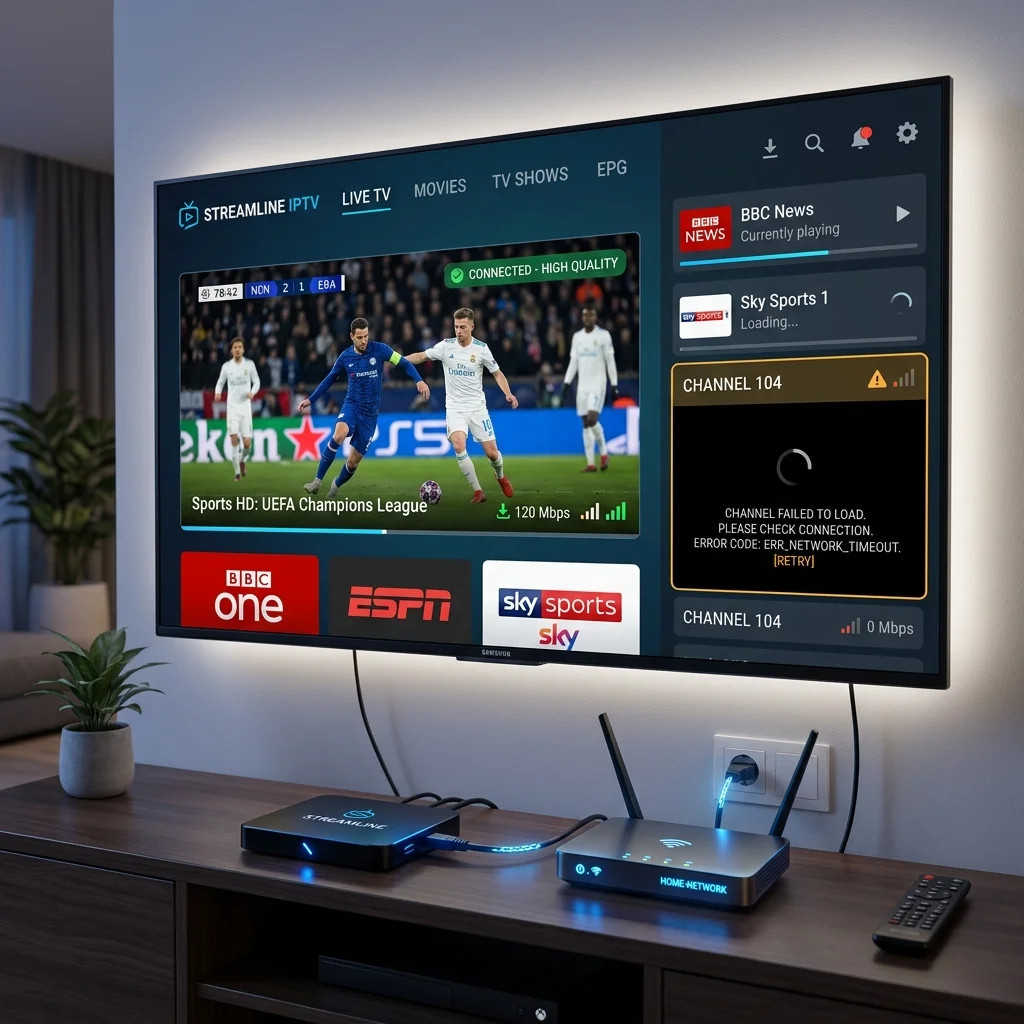 How to fix IPTV stream and channel loading problems
Can EPG Problems Affect IPTV Channel Loading?
In most cases, the Electronic Program Guide (EPG) data and the actual video playlist are entirely separate files. If the EPG fails to update or shows the wrong time, it generally will not prevent the channel stream from loading when you click on it.
However, in certain badly coded IPTV applications, a corrupted EPG database can cause the entire application to crash or freeze on the loading screen. If you suspect an EPG issue, read our detailed guide: How to Fix IPTV EPG Time Shift and Incorrect TV Guide Times.
Troubleshooting IPTV Channels With IPTVDoor
When using the IPTVDoor service, you are connecting to a premium, high-performance infrastructure designed for maximum uptime and instant channel loading.
If you experience channels failing to load while using IPTV Door, the issue is rarely a server outage. We highly recommend using our officially compatible devices and ensuring you have a stable, high-speed internet connection.
Because we provide access to a massive library of global content, always ensure your chosen application is capable of handling large playlists without freezing.
When Should You Contact IPTVDoor Support?
You should consider contacting support only after you have performed the basic troubleshooting steps. Before reaching out, make sure you have:
- Checked your internet connection on the same device.
- Restarted your IPTV player and your streaming device.
- Verified your account credentials are correct.
- Refreshed your playlist.
- Tested multiple channels.
- Tested another compatible device or player (if possible).
If you have completed these steps and your channels still refuse to load, our IPTVDoor support team is ready to investigate the issue and get your service running smoothly again.
Frequently Asked Questions
Conclusion
When your IPTV channels are not loading, a systematic troubleshooting approach will almost always reveal the solution.
Begin by checking your internet connection on the specific device you are using, test multiple channels to determine the scope of the problem, and perform a full restart of both your IPTV player and your streaming device. By refreshing your playlist and verifying your login credentials, you can eliminate the most common causes of stream failures.
If you are looking for a reliable, buffer-free streaming experience with lightning-fast channel loading, explore the IPTVDoor pricing plans today and upgrade your entertainment setup.