How to Fix IPTV EPG Time Shift and Incorrect TV Guide Times
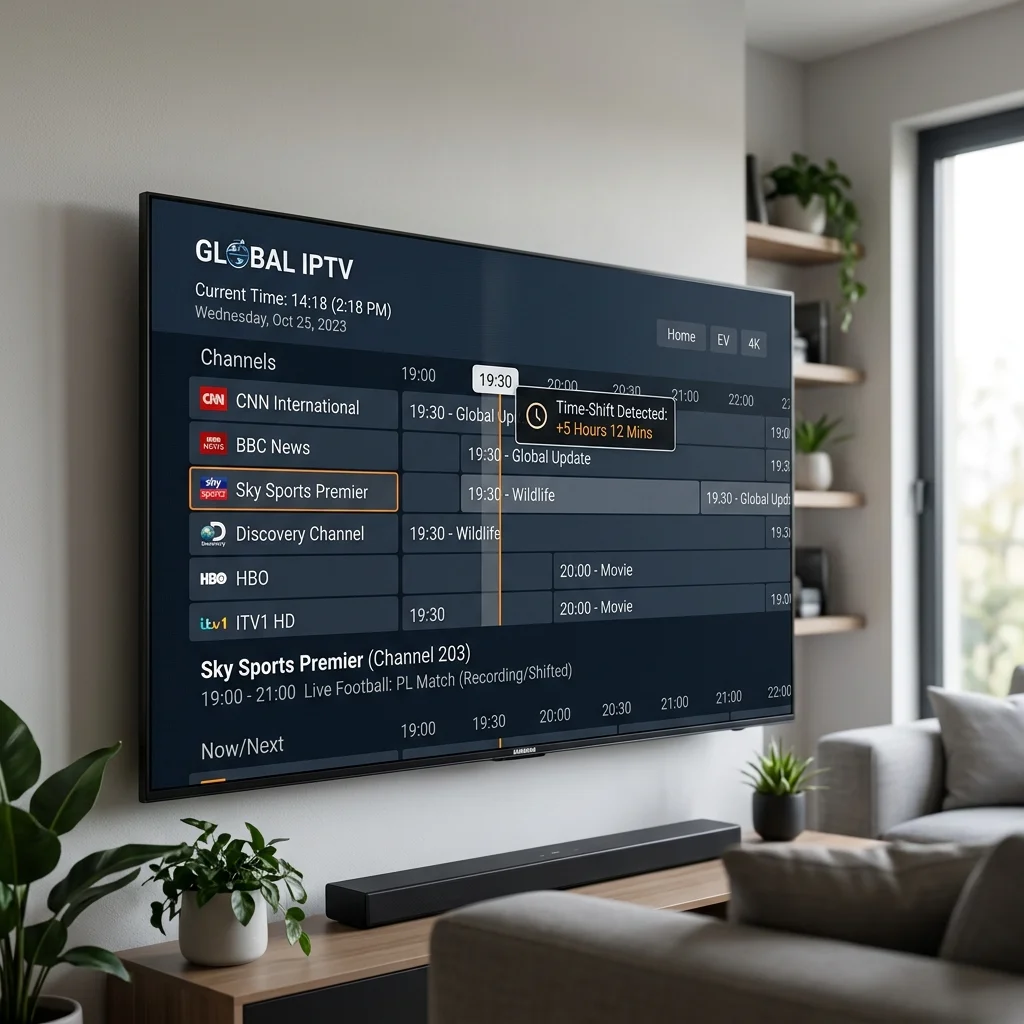
When you sit down to watch your favorite program, few things are more frustrating than opening your electronic program guide only to realize the schedule is completely wrong.
An accurate Electronic Program Guide (EPG) is one of the most important features of a premium IPTV experience. However, IPTV users sometimes notice that their TV guide displays incorrect times.
You might see programs appearing one hour early, one hour late, or even completely shifted by several hours. In some cases, the current program playing does not match the description on your screen, or the upcoming schedule is entirely inaccurate.
This guide will explain exactly why your IPTV EPG is showing the wrong time and provide a complete, step-by-step troubleshooting process to fix EPG time shifts, so you can get back to enjoying your IPTVDoor service.
IPTV EPG time shift and incorrect TV guide times[IPTVDOOR_OFFER_CARD]
What Is IPTV EPG Time Shift?
An IPTV Electronic Program Guide relies on timing data to synchronize the channel's broadcast with your local clock. EPG time shift refers to a misalignment between the time information provided by the EPG source and the time interpreted by your IPTV player.
When a time shift occurs, the IPTV player displays the TV guide schedule incorrectly relative to the actual broadcast.
For example, if a live football match is broadcasting at 8:00 PM, but your EPG shows the match scheduled for 9:00 PM, there is a one-hour time difference that needs to be corrected.
Before assuming the EPG file itself is broken, it's important to understand that your IPTV Smart TV app or streaming device often applies its own time zone and offset settings. This is why a schedule that works perfectly on one device might look completely wrong on another.
Signs That Your IPTV EPG Time Is Incorrect
How do you know if you are experiencing an EPG time shift rather than a completely broken guide? Look for these common symptoms:
- The entire guide is shifted: Every single program across all channels is exactly one or two hours ahead or behind.
- Only some channels show incorrect times: Specific categories or regional channels have wrong schedules, while others are correct.
- The current program is wrong: The live broadcast does not match the current time slot in the guide.
- The EPG changes after daylight-saving adjustments: The TV guide was perfect yesterday but shifted by an hour today.
- The EPG and actual broadcast times do not match: The guide shows information, but it doesn't align with the real-world broadcast schedule.
If your guide is completely blank rather than just showing the wrong time, you should instead read our guide on IPTV EPG Not Working: Common Causes and How to Fix It.
Why Is My IPTV EPG Showing the Wrong Time?
A time shift in your IPTV guide can be caused by several different factors. Before changing settings randomly, review the most common causes:
Incorrect Device Time
Your Smart TV, phone, TV box, or streaming device might simply have the incorrect date or time configured in its system settings. The IPTV player relies on this system clock to display the guide.
Incorrect Time Zone
Your device may be configured for the wrong geographic time zone. Even if the clock on the wall says 8:00 PM, if your device thinks it's 8:00 PM in a different time zone, the EPG will calculate the schedule incorrectly.
IPTV Player Settings
Many modern IPTV players have specific EPG-related time or offset settings built into their menus. These settings allow users to manually correct time differences, but if they are set incorrectly, they will break the guide.
EPG Source Configuration
The EPG data source (the XMLTV link provided by your IPTVDoor IPTV service) contains timing information. If the application misinterprets the UTC (Coordinated Universal Time) data from the source, it will display the wrong local time.
Daylight-Saving Time
Seasonal clock changes (Spring forward, Fall back) can sometimes create apparent schedule differences if your device or IPTV player does not automatically adjust for daylight-saving time (DST).
Playlist/EPG Mapping
If the channel mapping is incorrect, guide information from one region might be mistakenly applied to a channel from another region, causing the schedule to appear shifted.
Temporary EPG Data Issue
Sometimes the issue originates from the EPG data itself rather than your device. A temporary server glitch or update delay can cause the guide to temporarily display incorrect times.
How to Fix IPTV EPG Time Shift Step by Step
If your EPG is displaying the wrong time, follow this logical troubleshooting process. Do not skip steps, as the simplest solution is often the correct one.
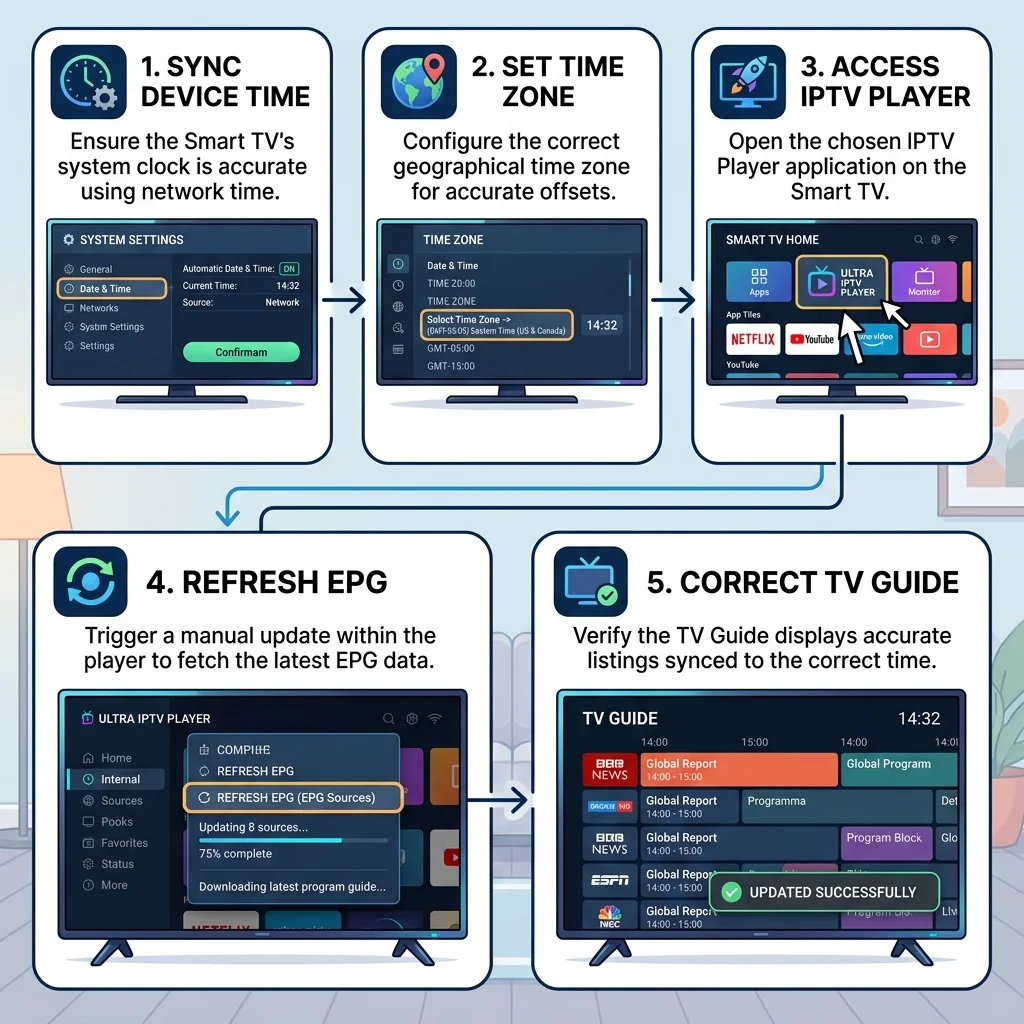 How to fix incorrect IPTV EPG time settings
Step 1: Check Your Device Time
Start by verifying your device's system time. Go to the main settings of your Smart TV, Android box, or Firestick.
- Check the current Date.
- Check the current Time.
- Ensure Automatic Time (provided by the network) is enabled.
Step 2: Check the Time Zone
While in your device's date and time settings, explicitly check the Time Zone. Do not assume it is correct just because the clock shows the right time. Ensure the time zone exactly matches your physical location.
Step 3: Check IPTV Player EPG Settings
Open your IPTV application's settings menu. Look for the EPG or Guide section. Different players provide different options:
- EPG offset
- Time shift
- EPG adjustment
- Time correction
If an offset is currently applied (e.g., +1 or -1), reset it to zero (0) and check the guide again.
Step 4: Refresh the EPG
If you have corrected the device time or time zone, you must refresh the EPG to force the application to recalculate the schedule. Look for a "Refresh EPG" or "Update TV Guide" button in your app.
Step 5: Reload the Playlist
Sometimes, simply refreshing the EPG isn't enough. You may need to reload or refresh the entire playlist to force the app to re-download the XMLTV data from your provider.
Step 6: Restart the IPTV Player
Close the IPTV application completely. Force close it if necessary, and then reopen it. This clears the application's temporary memory and forces a fresh connection.
Step 7: Restart the Device
If the guide is still shifted, restart your Smart TV, Firestick, or TV box. A full reboot can resolve lingering system clock issues. If you are experiencing other issues like buffering, a device restart is also recommended in our guide: IPTV Buffering Only at Night: Why It Happens.
Step 8: Test Multiple Channels
Check whether the time shift affects one channel, one specific category (like UK channels vs. US channels), or the entire playlist. This helps determine if the issue is localized or global.
Step 9: Test Another IPTV Player
If possible, log into your IPTVDoor account using a different compatible IPTV player on the same device. If the EPG is correct in the second player, the issue is definitely related to the first application's settings.
[IPTVDOOR_OFFER_CARD]
IPTV EPG Is One Hour Ahead: What to Do
If your IPTV EPG is exactly one hour ahead (e.g., an 8:00 PM show is listed at 9:00 PM), the problem is almost certainly related to time zones or daylight-saving time.
Do NOT immediately enter a manual time offset in your app.
First, check:
- Is your device set to the correct time zone?
- Is daylight-saving time properly enabled or disabled on your device?
- Does your IPTV player have a rogue "+1" offset already active in its settings?
Only after confirming your device time and time zone are 100% correct should you use the application's EPG time shift feature to apply a "-1" adjustment.
IPTV EPG Is One Hour Behind: How to Fix It
Similarly, if your IPTV EPG is one hour behind (e.g., an 8:00 PM show is listed at 7:00 PM), follow the exact same diagnostic approach.
A one-hour difference can have several causes, typically related to a missing daylight-saving time adjustment or a misconfigured time zone setting. Verify your system settings, refresh the EPG, and only apply a "+1" EPG time shift in the app settings if absolutely necessary.
How Time Zones Affect IPTV EPG
A time zone represents a geographic region that observes a uniform standard time. When your IPTV player downloads EPG data, that data is typically provided in UTC.
The player must then convert that UTC data into your local time. If your device's time zone is incorrect, the player will convert the data incorrectly, resulting in an EPG that appears shifted.
For example, if you live in New York (EST) but your Smart TV is set to Chicago (CST), your entire EPG will be shifted by one hour, even if you manually set the TV clock to the correct EST time.
Can Daylight Saving Time Affect IPTV EPG?
Yes. Daylight-saving time (DST) involves shifting the clock forward by one hour in the spring and backward by one hour in the autumn.
When a DST change occurs, the actual broadcast schedule shifts relative to UTC. If your device does not automatically apply the DST change, or if the IPTV player fails to recalculate the EPG data, the schedule will appear shifted.
Always verify your device's automatic time and DST settings after a seasonal clock change, and remember to force an EPG refresh.
How to Use IPTV EPG Time Shift Settings
If your device time and time zone are perfect, but the guide is still wrong, you can use the EPG time shift settings found in most modern IPTV applications.
If the actual program time is 8:00 PM but the EPG displays 9:00 PM, there is a one-hour difference that requires a negative adjustment. You would set the EPG time shift to -1 or -1:00.
If the actual program time is 8:00 PM but the EPG displays 7:00 PM, you require a positive adjustment. You would set the time shift to +1 or +1:00.
After changing the setting, you must usually refresh the EPG and test the channels. Avoid entering random values; calculate the exact hour difference.
Using EPG With IPTVDoor
When using the IPTVDoor service, you benefit from a highly optimized, automatically synchronized Electronic Program Guide. Our EPG data is meticulously mapped to our massive library of live channels to ensure maximum accuracy.
If you experience an EPG time shift while using IPTV Door, the issue is almost always related to the specific app or device configuration rather than the server data. We recommend using our officially supported devices and recommended applications, which handle our EPG format seamlessly.
If you've followed the steps in this guide and still experience issues, our IPTVDoor support team is always available to help you verify your configuration.
Why EPG Settings Differ Between IPTV Players
Different IPTV players handle EPG data in very different ways.
Some apps, like Tivimate or Smarters, have robust, granular time-shift controls that allow you to adjust the EPG offset for the entire playlist or even for individual channels. Other, simpler apps may only have a single, global offset setting—or none at all.
Furthermore, menu names vary. One app might call it "EPG Offset," while another calls it "Time Shift" or "Timeline Correction." Because of these differences, a solution that works perfectly for one application may require a slightly different approach in another.
How to Fix EPG Time on Smart TV
Fixing EPG time on a Smart TV requires checking the television's core operating system settings:
- Samsung Smart TV (Tizen): Go to Settings > General > System Manager > Time > Clock. Ensure the Time Zone is correct and Auto is enabled.
- LG Smart TV (webOS): Go to Settings > General > Time & Date. Check the Time Zone and set it to Auto.
- Android TV / Google TV (Sony, Philips, TCL): Go to Settings > Device Preferences > Date & time. Ensure Automatic date & time is enabled, and explicitly verify the Time Zone setting.
Once the TV system time is correct, open your IPTV app, refresh the EPG, and check the guide. For more device-specific setup information, review the IPTVDoor installation guide.
How to Fix IPTV EPG Time on Firestick and TV Boxes
For Amazon Firestick and Android TV boxes:
- Navigate to the device's main Settings menu.
- Select Preferences (or Device Preferences) > Date & Time.
- Verify the Time Zone. On Firestick, this is crucial, as moving the device to a new location won't automatically update the time zone in some cases.
- Open your IPTV player and check its internal EPG offset settings.
- Force an EPG refresh and a playlist reload.
- Restart the Firestick if the changes do not take effect immediately.
If your Firestick is also experiencing playback issues, check out our guide on IPTV Channels Not Loading or IPTV Keeps Disconnecting.
IPTV EPG Is Not Updating: What Should You Check?
Sometimes the EPG time isn't shifted—it's simply frozen in the past because the guide is not updating. If your EPG shows yesterday's programs:
- Check your internet connection.
- Verify the EPG source is still active.
- Ensure your player is configured to automatically refresh the EPG (e.g., "Refresh on app start" or "Refresh every 24 hours").
- Force a manual EPG refresh or playlist reload.
- Update your IPTV application to the latest version.
- Restart your device.
If you suspect your stream is completely failing rather than just the EPG failing, refer to IPTV Channels Load but Won't Play: What to Check.
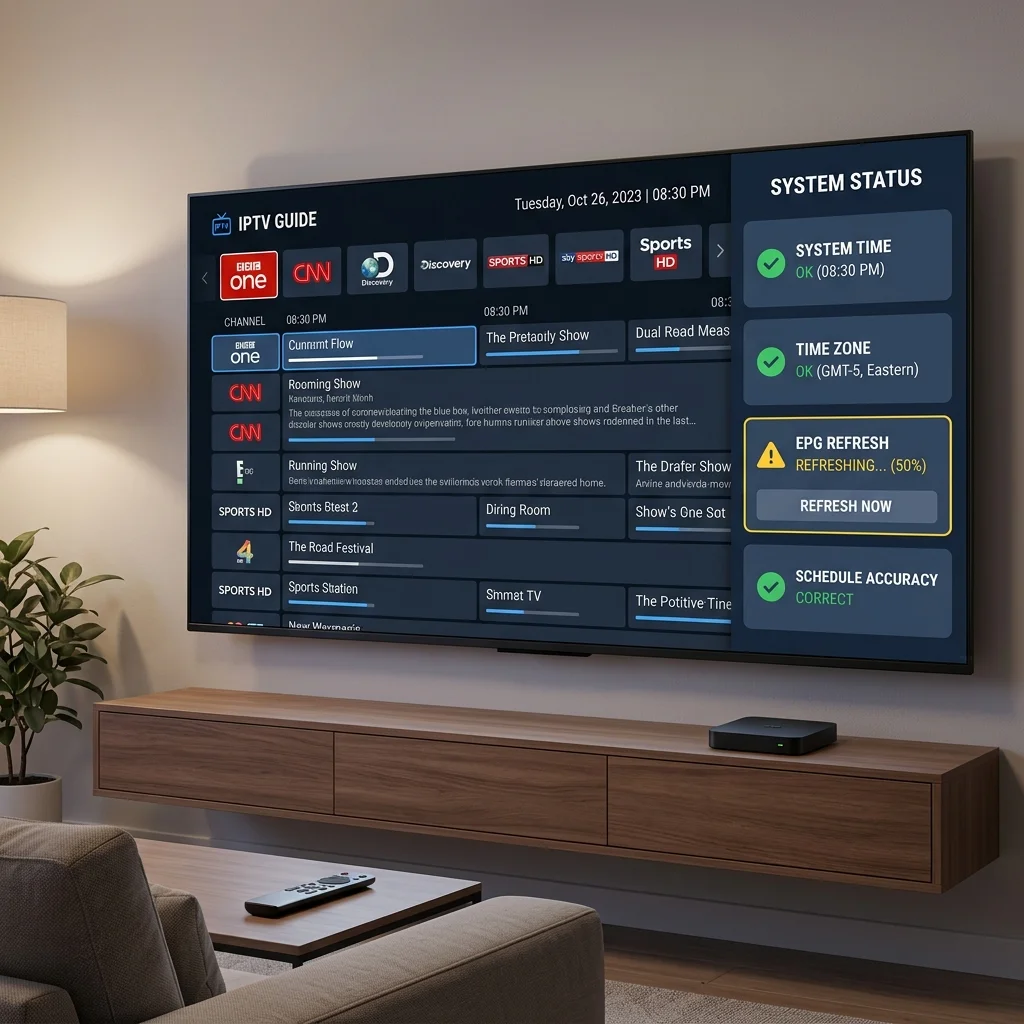 IPTV EPG troubleshooting guide for incorrect TV guide times
Why Are Some IPTV Channels Showing the Wrong EPG Time?
If only certain channels are showing the wrong EPG time while the rest of the guide is perfectly synchronized, the issue is rarely your device time.
This specific problem usually relates to EPG mapping or channel-specific data provided by the EPG source. For example, if you are watching a time-shifted "+1" channel broadcast, but the app maps it to the standard EPG data, the guide will be off by an hour.
In these cases, there is usually nothing you can fix on your end, as the data itself needs to be corrected at the source.
When Should You Contact Your IPTV Provider?
If you have tried all the troubleshooting steps, when is it time to reach out for help? Support may be appropriate when:
- Your device time and time zone are 100% correct.
- Your IPTV player settings have zero offset applied.
- You have manually refreshed the EPG and reloaded the playlist.
- Multiple compatible players show the exact same incorrect time shift.
If you are an iptvdoor customer and have exhausted these steps, please reach out via our Contact/Support page so we can investigate the EPG synchronization.
Frequently Asked Questions
Conclusion
Fixing an IPTV EPG time shift is usually a straightforward process of elimination.
Always start by checking your device time and ensuring the time zone is perfectly accurate for your physical location. Next, verify that your IPTV player settings don't have an accidental offset applied, and force a complete EPG refresh. By following these steps—rather than changing multiple settings at once—you can quickly identify and resolve the issue.
If you're looking for a premium streaming experience with a reliable, highly accurate TV guide, check out our IPTVDoor pricing plans today and enjoy perfectly synchronized entertainment.